
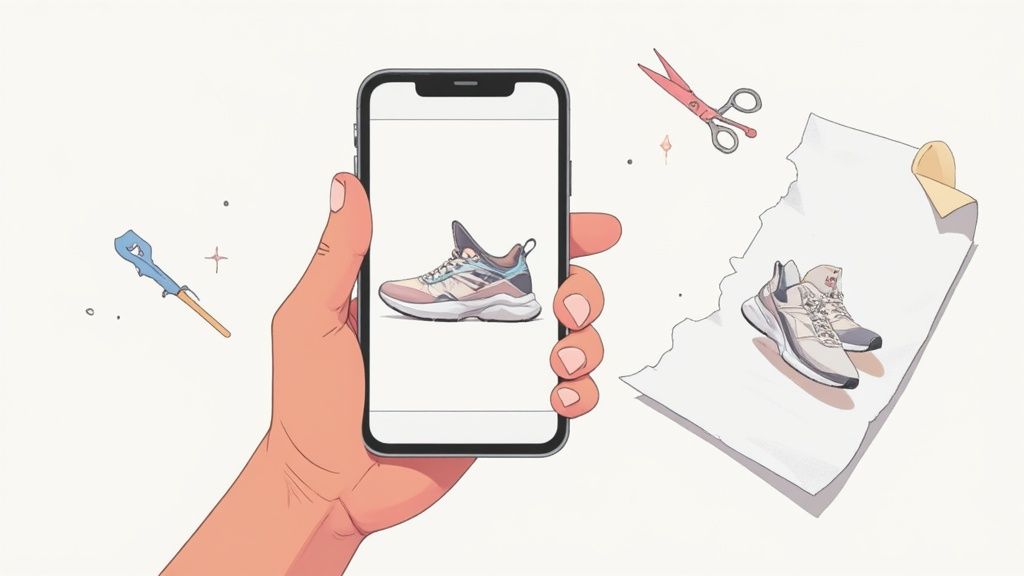
The fastest way to pull a subject out of a photo is already built right into your iPhone. Just open a picture in the Photos app, press and hold on the subject until you see it glow, and lift your finger. Just like that, you've got a background-free image you can copy and paste anywhere. It's a game-changer for quick edits on the fly.
Your Quick Guide to Removing Backgrounds on iPhone

Getting a clean, professional-looking image used to mean firing up complex desktop software. Now, you can do it in seconds right from your phone, which is a massive win for anyone from casual users to small business owners trying to make their products pop.
This native 'lift' feature, which Apple rolled out with iOS 16, is your most direct route. That simple tap-and-hold gesture is incredibly powerful, instantly isolating your subject from whatever is going on behind it. I use this all the time for creating quick assets for social media or dropping a product idea into an iMessage to show a client. It's all one fluid motion.
Choosing The Best Method For Your Needs
But let's be real—the built-in tool isn't a silver bullet. The best method really depends on what you're trying to accomplish. Are you just making a fun Instagram Story, or do you need a perfectly polished product photo for your Shopify store? The end goal dictates the tool.
To figure out what's right for you, it helps to look at the different options side-by-side. The native iOS feature is all about speed, while dedicated apps and AI services give you much more control and consistency. Think of them as different tools in your creative toolkit.
For e-commerce sellers, consistency is everything. The iPhone's tool is great for a one-off task, but a specialized service ensures every single product photo on your site has the same clean, professional look. That's how you build brand trust.
So, how do you decide? Let’s break down the main options to see where each one shines.
Choosing Your iPhone Background Removal Method
Deciding which tool to use comes down to balancing speed, precision, and cost. Here’s a quick comparison to help you pick the right one for your specific project.
| Method | Best For | Speed and Ease | Precision | Cost |
|---|---|---|---|---|
| Built-in iOS Tool | Quick edits, social media posts, and sharing in messages. | Very Fast & Easy | Good, but struggles with fine details like hair or fur. | Free |
| Third-Party Apps | Manual refinement, batch processing, and creative templates. | Moderate | High, with manual tools for fine-tuning edges. | Free (with ads/watermarks) or Subscription |
| Specialized AI Services | E-commerce product photos, catalog consistency, and complex images. | Fast & Automated | Very High, AI-optimized for professional results. | Subscription or Pay-per-image |
Ultimately, having a few different methods in your back pocket means you're ready for any situation, whether it's a quick social post or a full-blown product launch.
Your iPhone's Secret Weapon for Background Removal
You might not realize it, but Apple baked a surprisingly powerful background removal tool right into the Photos app. This isn't some clunky, hidden feature; it's a slick, intuitive way to lift a subject out of a picture and use it somewhere else.
The magic is in the simplicity. Just open a photo, find your subject, and long-press on it. You’ll feel a little haptic buzz and see a glowing white line trace around the person or object. That's your cue—the subject is now isolated.
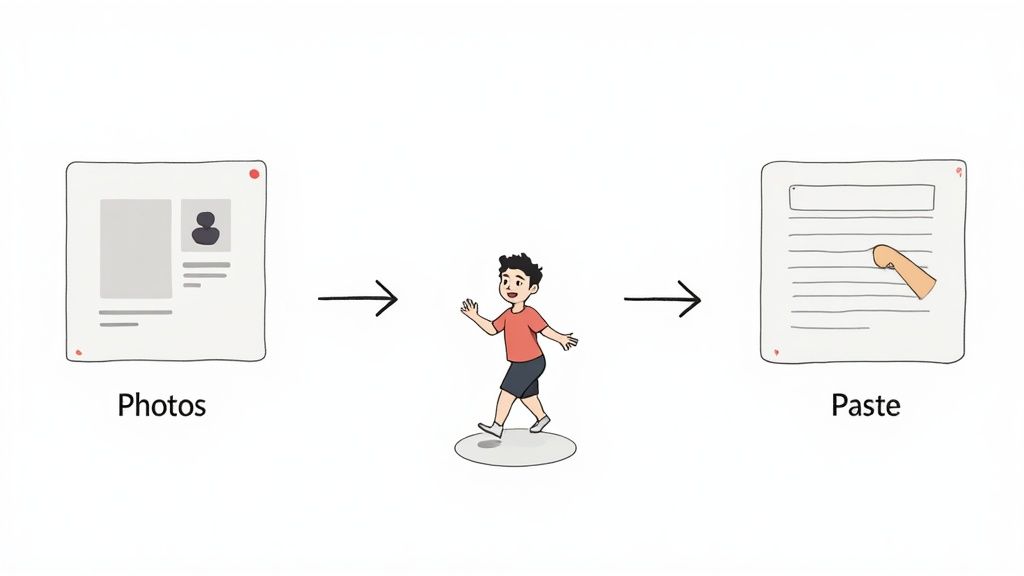
Once it’s glowing, you’ve got two choices. You can lift your finger and tap "Copy" to save it to your clipboard. Or, even cooler, you can keep your finger held down, and with another finger, swipe over to another app like Messages or Notes and just drop it in. This "lift and drop" is what makes it so fast and seamless.
How You Can Use It Every Day
This little trick is incredibly handy for quick, on-the-fly tasks where perfection isn't the goal, but speed is.
- Quick Product Mockups: Need to show a client a new product without your messy workshop in the background? Snap a pic, lift the product out, and drop it straight into an iMessage for instant, clean feedback.
- Creating Fun Stickers: Isolate a funny picture of your dog or a friend and paste it into a group chat. Boom, instant custom sticker.
- Simple Document Visuals: Adding a headshot to a Pages document is as easy as lifting it from Photos and pasting it in. It gives things a much more polished feel without any real effort.
This feature got a major boost with iOS 16 back in 2022. The AI behind it can now isolate subjects with up to 96% precision on portraits, which is a massive leap forward. You can learn more about these AI editing advancements and how they compare.
The real magic here is the deep integration. Being able to lift a subject from a photo and drop it directly into an email or text message in one fluid motion is a workflow that third-party apps just can't match.
Knowing Its Limits
As good as it is, this built-in tool isn't a silver bullet. It has its weak spots. It can get a bit clumsy around complex edges—think wispy hair, pet fur, or the delicate details of a lace dress.
The AI also gets confused when the subject and background share similar colors. A beige product on a tan backdrop? You're probably going to get a choppy, imperfect cutout.
For the best results, give the AI a helping hand. Shoot your subject against a simple, high-contrast background. A dark object against a plain white wall is a perfect example. This simple step makes the edges clear and distinct, dramatically improving the quality of the automatic cutout and saving you a lot of headaches.
Look, the iPhone’s built-in background remover is a fantastic party trick. It's fast, it's easy, and for a quick social media post, it gets the job done. But let's be real—when you need to do serious work, you can't rely on a tool that offers zero control.
That’s when you head to the App Store. Think of it this way: the built-in tool is a decent pocketknife, perfect for opening a box. But when you need to carve something with detail, you grab a set of specialized chisels. That's what a dedicated background remover app is—a set of precision tools for when the final result actually matters.
Gaining Finer Control Over Your Edits
The biggest reason to switch to a dedicated app is simple: manual refinement. Apple's AI does a surprisingly good job, but it often gets tripped up by the tricky stuff—hair, fur, fuzzy sweater edges, or intricate details. It might leave little bits of the background clinging to your subject or, even worse, chop off a piece of the product itself.
A specialized app gives you the tools to clean up that mess.
- Eraser and Restore Brushes: These are your best friends. You can literally paint back parts of the image that got accidentally erased or clean up the fuzzy edges the AI missed. This is absolutely essential for getting a clean, professional-looking cutout.
- Zoom and Pan: The ability to pinch and zoom right into the pixels is a game-changer. It lets you get super precise with your edits, ensuring every edge is perfect.
These features aren't just nice to have; they're non-negotiable if you want to turn a decent cutout into a flawless one.
Handling Multiple Images Efficiently
If you're running any kind of online store, efficiency is the name of the game. Let's say a new shipment of 50 products just arrived. Are you really going to sit there and remove the background from each photo, one by one, using the "lift and drop" method? That sounds like a nightmare.
This is where batch processing saves the day. Many third-party apps are built from the ground up for e-commerce sellers. You can just dump an entire folder of product shots into the app, press a button, and watch as it removes all the backgrounds at once. This one feature can literally save you hours of mind-numbing work.
For sellers on platforms like Shopify, consistency across product listings is key to building a trustworthy brand. Batch processing not only saves time but also ensures every image adheres to the same clean, professional standard.
Honestly, if you're managing an online shop, figuring out how to remove the background for Shopify with a tool that handles batches is one of the biggest workflow upgrades you can make.
Accessing Creative Templates and Higher Resolution
Beyond just yanking out the background, many of these apps are packed with creative tools. They often come with libraries of pre-made backgrounds, templates, and other assets. You can instantly drop your product onto a clean white background, a gradient, or even a lifestyle scene to create ads and social media posts right inside the app.
And here’s a big one: resolution. The iPhone's native tool is fine for web stuff, but if you need a high-quality PNG for a print ad or a high-res banner, a dedicated app is the only way to go. It will give you that crisp, uncompressed file you need, ensuring your product looks sharp no matter where you use it.
Creating Professional Product Photos for E-commerce
For anyone selling online, a clean product photo isn't just a nice-to-have—it's the single most important part of your digital storefront. Great images build trust, justify your prices, and are often the final nudge a customer needs to click "add to cart." The good news? You don't need a fancy studio to get professional results. Your iPhone is more than capable.
The goal is simple: make your product the hero.
This all starts with good lighting. Forget expensive gear; a spot near a big, bright window with indirect sunlight is perfect. Place your product on a plain, solid-colored surface, like a white poster board, to create some natural contrast. This one little step makes the background removal process so much easier for whatever tool you end up using.
After you've snapped the photo, it's time to delete the background for that clean, marketplace-ready look. Consistency is everything here. Platforms like Amazon and Shopify often require a pure white background, and maintaining that standard across your entire catalog creates a polished, trustworthy brand image.
Perfecting Your E-commerce Workflow
The real challenge for sellers isn't just removing one background; it's doing it for dozens, or even hundreds, of products. This is where a solid workflow becomes your best friend.
While the iPhone's built-in tool is awesome for a quick, one-off edit, it’s just not practical for an entire product line. A dedicated app or service with batch processing can turn hours of tedious clicking into just a few minutes. That's a massive efficiency boost for any business owner.
This chart breaks down a simple way to think about which tool to use based on your needs.
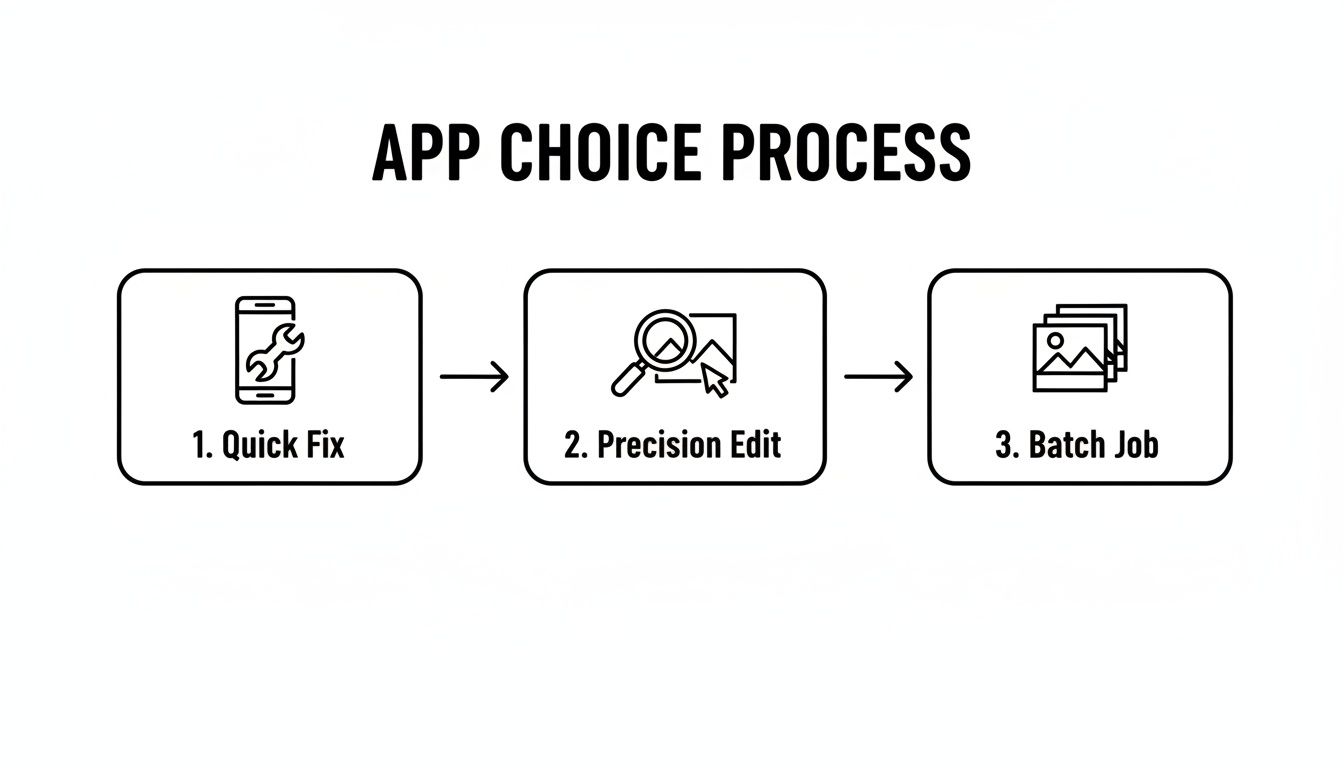
As you can see, when your needs scale from a single quick fix to batch jobs for a whole catalog, your choice of tool should evolve right along with it.
Avoiding Common Product Photography Pitfalls
Even with the best tools, a few common mistakes can completely derail your efforts. Inconsistent lighting, for instance, can create harsh, distracting shadows that are a nightmare to remove cleanly. Shooting from slightly different angles for each product can also make your online store look messy and unprofessional.
Here's how to dodge those issues:
- Maintain Consistent Lighting: Try to shoot all your products at the same time of day in the same spot. This keeps the lighting and shadows uniform across the board.
- Use a Tripod: A small, cheap phone tripod is a game-changer. It guarantees every shot is from the exact same angle and height, creating a cohesive, professional-looking product grid.
- Check for Clean Edges: After removing the background, zoom in and actually inspect the edges. Jagged or blurry cutouts scream amateur hour and can seriously erode customer trust.
The commercial impact of high-quality, clean images is undeniable. Efficiently removing backgrounds isn't just about making things look pretty; it's a direct driver of sales and a key part of effective online merchandising.
Beyond just zapping backgrounds, understanding a few fundamental tips for product photography can elevate your visuals even further. The data backs this up, too. Many Shopify merchants, especially in North America and Asia-Pacific, have seen a 25% sales uplift after weaving AI background removers into their workflow. For sellers who need a completely hands-off solution to achieve that catalog-wide consistency, professional product photo editing services are always an option.
Using AI for the Really Tricky Stuff
Let's be honest, sometimes you run into a photo that just stumps the standard tools. I'm talking about the real challenges: wisps of hair blowing in the wind, the soft, fuzzy edges of a pet’s fur, or the subtle transparency of a glass object.
These are the moments where the built-in iPhone feature or most basic apps just hit a wall. You end up with choppy, amateur-looking cutouts that are more distracting than helpful.
This is precisely when I turn to a dedicated AI-powered service. These tools are in a different league. They aren't just looking for edges; they use sophisticated machine learning models trained on millions of images to truly understand the photo. This context allows them to separate a subject from its background with a level of precision that simpler apps just can't touch.
When AI Genuinely Makes a Difference
The value of these services becomes crystal clear when you're working with images that have fine details or tricky compositions. An AI built for this specific task can cleanly isolate even the most difficult subjects, saving all those little details that would otherwise get lost.
Think about these common headaches where a specialized AI is the clear winner:
- Complex Textures: Imagine trying to cut out a fuzzy sweater, a delicate piece of jewelry with intricate chains, or a plush toy. AI keeps those textures looking natural instead of creating a harsh, "cut-and-pasted" outline.
- Flyaway Hair: We’ve all been there. An AI model can intelligently trace individual strands of hair against a busy background, a task that's nearly impossible to do by hand on a small phone screen.
- Glass and Reflections: Items like wine glasses, sunglasses, or shiny electronics are notoriously difficult. A smart AI understands reflections and transparency, which makes for a much more believable result.
It's More Than Just Background Removal
The best AI solutions I've used offer a whole suite of tools that go way beyond just cutting out the subject. This is where they really shine for e-commerce sellers or anyone who needs polished visuals on a tight schedule. Many services can automatically add realistic shadows and reflections—these are crucial for making a product look grounded and professional, not just floating in a white void.
For sellers, the time saved is a massive advantage. Being able to upload a raw photo and get back a perfectly edited, marketplace-ready image in seconds is a huge productivity boost. This isn’t just about making things look pretty; it's about fundamentally streamlining your content workflow.
This technology is also a game-changer for creating a consistent brand look. For instance, an AI product photo generator can place your entire product line into custom, on-brand scenes without you ever needing to book a physical photoshoot.
For truly professional results, especially with pure white backgrounds, you might even pair the AI with specialized gear like a retractable blue chromakey backdrop. This gives the AI a perfect, clean slate to work with, making its job even easier.
The power of great visuals is undeniable—we all know that posts with strong images get way more engagement. Some users have reported that this AI-driven approach has cut their editing time by as much as 90%, making professional results accessible to everyone.
When you absolutely need flawless results, every single time, investing in a powerful AI tool pays for itself in both quality and the immense amount of time you get back.
Got Questions? We’ve Got Answers.
Even with the slickest tools, you’re bound to run into a few head-scratchers. Getting a straight answer is the key to making this whole background removal thing work for you, whether you're just cleaning up a personal photo or prepping hundreds of product shots.
Let's dive into some of the questions that pop up most often.
Can I Remove the Background From a Video on My iPhone?
Ah, the million-dollar question. Once you get the hang of photo editing, video feels like the next logical step.
The short answer is yes, but not with Apple's built-in tools. That slick 'lift subject from background' feature is for stills only. To work that same magic on a video, you'll need to grab a dedicated app from the App Store.
Apps like CapCut are your best bet here. They typically rely on a classic filmmaking trick called chroma keying.
- You’ll need a green screen. Start by filming your subject in front of a solid green (or sometimes blue) background.
- Import the clip. Pull your video file into an app that has a chroma key function.
- Target the color. Use the app's tool to select and digitally remove that specific shade of green, which makes the background transparent.
- Drop in your new background. From there, you can layer a new image or even another video behind your subject.
It’s definitely more of a setup than tapping and holding on a photo, but it opens up a huge world of creative possibilities for your videos.
How Can I Get the Best Results with the Built-In iOS Tool?
Apple’s tool is pretty smart, but you can help it be a whole lot smarter. The quality of your final cutout really depends on the quality of your original photo.
Think of it like giving the AI a cheat sheet.
The single best thing you can do for a clean cutout is to shoot against a high-contrast, uncluttered background. A plain, solid-colored wall will give you a much cleaner edge than a busy, patterned one.
Good lighting is your other best friend. Bright, even light gets rid of weird shadows that can easily fool the AI, leading to those blotchy, uneven edges we all hate.
What’s the Best Free App for Removing Backgrounds on an iPhone?
When it comes to "free," there's almost always a catch. The best free app is usually the one with the compromises you can live with—be it watermarks, ads, or lower-resolution exports.
If you’re looking for a solid, no-strings-attached option, Adobe Express is tough to beat.
It gives you a reliable background remover that produces great-looking results without slapping a watermark on them. The only real "catch" is that you have to sign up for a free Adobe account. For the quality you get, it’s a tiny hurdle and one of the best free options you'll find on the App Store.
Ready to skip the trial-and-error and get consistently perfect, marketplace-ready images every time? ProdShot is designed for exactly that. It uses AI to turn your simple phone pictures into professional product shots that sell. Grab your free trial today and see what it can do.