
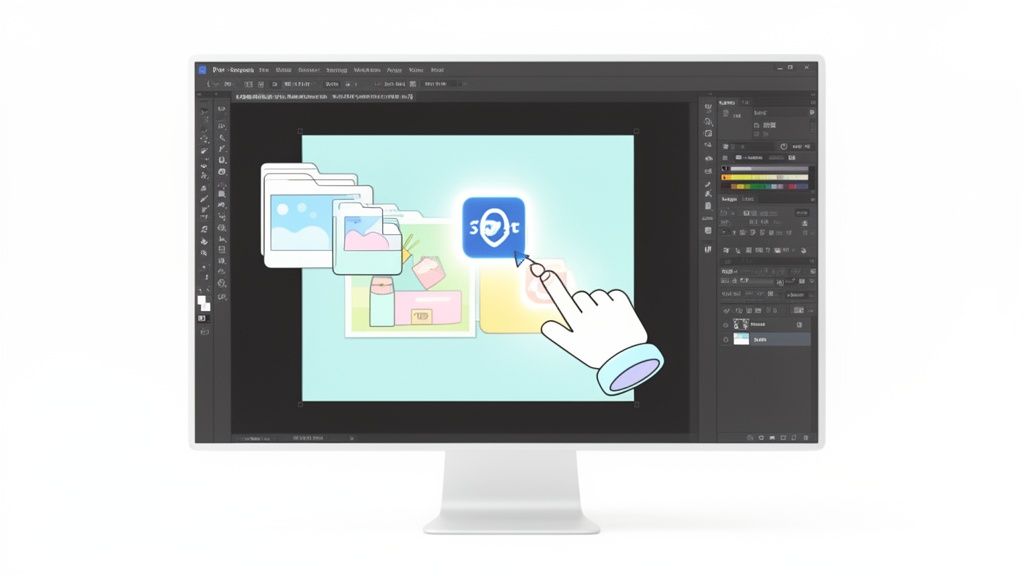
Getting your images into Photoshop is the first thing you have to do for any project. While it sounds simple, how you do it really matters.
The quickest methods are dragging a file right onto your canvas or using the File > Place Embedded command. Both of these create a non-destructive Smart Object, which is exactly what you want most of the time. For opening the main image you plan to edit, just stick with the classic File > Open.
Your Quick Guide To Inserting Images In Photoshop
Knowing how to properly insert an image into Photoshop is one of those fundamental skills that makes everything else easier, whether you're designing a social media banner or touching up product photos for your shop.
It might seem basic, but the method you pick directly affects your editing flexibility, file size, and final image quality. Honestly, understanding the "why" behind each technique is just as crucial as the "how."
Think about it this way: are you starting a totally new project from a single photo, or are you just adding a logo onto an existing design? The answer tells you exactly what to do first. Getting this right from the start saves you from headaches like pixelation and quality loss later on.
The 3 Main Ways to Add an Image
The three most common ways to get an image into your workspace are Open, Place Embedded, and good old Drag-and-Drop. Each one has a specific job.
File > Open: Use this when the image is the main event. It opens your photo in its own brand-new document, making it the base layer you'll build upon. This is the go-to for editing a standalone product shot or a portrait.
File > Place Embedded: This is the professional’s choice for adding an image to a project that's already open. It automatically turns the image into a Smart Object—a special container that protects the original photo's quality, no matter how many times you resize or warp it.
Drag-and-Drop: For pure speed, nothing beats dragging an image file from your desktop or folder directly onto your Photoshop canvas. This also creates a Smart Object by default, so it's a fast and non-destructive way to add multiple elements to a design.
Let's say you're a Shopify store owner creating a new promotional banner. Using Place Embedded for your product photo is a must. This lets you resize and move the product around endlessly without it getting blurry, keeping your visuals sharp and professional.
A Quick Comparison of Methods
To make it even clearer, here’s a quick breakdown of when to use each method.
Image Insertion Methods Quick Comparison
| Method | Best For | Creates Smart Object? | Key Benefit |
|---|---|---|---|
| File > Open | Editing a single, primary image (e.g., a headshot). | No | Opens the image in its own, new document at original resolution. |
| File > Place Embedded | Adding images to an existing design (e.g., logos, product shots). | Yes | Preserves original image quality, allowing for non-destructive resizing. |
| Drag-and-Drop | Quickly adding multiple images to an existing document. | Yes | Fastest workflow for building composites while staying non-destructive. |
| Copy and Paste | Quick, temporary mockups where quality isn't critical. | No | Very fast but offers the least control and can degrade image quality. |
Ultimately, Place Embedded and Drag-and-Drop are your best friends for most compositing tasks.
Why Your Method Matters
Picking the right technique from the very beginning just makes your whole workflow smoother. If you're building a complex design with tons of different images, using Place Embedded for every single element is the only way to stay organized and keep your file editable.
This core skill of layering images is essential in many creative fields, including professional UI Design, where non-destructive editing is a non-negotiable part of the job.
By mastering these simple methods, you can kick off any project with confidence. You'll avoid the classic beginner mistake of just copying and pasting images, a habit that offers very little control and almost always leads to disappointing, low-quality results.
Place Embedded vs. Place Linked: A Deep Dive
When you go to add an image in Photoshop using the File > Place command, you're immediately faced with a choice: Embedded or Linked? They might sound similar, but your decision can make a huge difference in your file size, editing flexibility, and how easily you can work with a team.
Think of Place Embedded as making a permanent copy of your image and pasting it directly into your Photoshop document. The image becomes a self-contained part of your .PSD file, which is great for one-off designs where you want everything bundled together.
Place Linked, on the other hand, acts more like a shortcut. Instead of bloating your Photoshop file with the full image, it creates a lightweight pointer to the original image file living elsewhere on your computer. This keeps your .PSD file incredibly small and nimble.
When to Embed Your Images
Embedding is your go-to when portability is the top priority. If you need to send a single .PSD file to a client and be absolutely sure they have everything, embedding is the safest route. No missing files, no error messages.
Imagine you're a freelancer sending a website mockup. By embedding all the photos and icons, you can deliver one clean, self-sufficient package. The client can open it without any fuss about broken links.
The Power of Linking Images
The real magic of Place Linked kicks in on large-scale or collaborative projects. Let's say your marketing team is working on a campaign where the company logo appears across dozens of different ad mockups.
If that logo is a linked file, any update to the original logo—maybe a color tweak or a new tagline—will automatically ripple across every single Photoshop file that links to it. This can save hundreds of hours, eliminating the tedious task of manually swapping out the asset in every file. It’s the secret to a truly efficient and scalable workflow.
This idea of non-destructive editing isn’t new. As far back as 1994, Photoshop 3.0 introduced layers, which was a massive leap from the flat, permanent edits of earlier versions. If you’re curious, you can see a great rundown of the history of Photoshop's features over the years.
Making the Right Choice
This simple decision guide can help you figure out the best way to insert an image based on what you're trying to accomplish.

As the flowchart shows, your end goal—whether it's adding a new element or editing what’s already there—is what should drive your choice between embedding and linking.
Key Takeaway: Link when an asset will be used or updated across multiple files. Embed when creating a standalone document that needs to be self-contained and portable.
A word of warning, though. The single biggest risk with linking is the dreaded "broken link." If the original source file gets moved, renamed, or deleted, Photoshop will lose track of it and just show a placeholder. To avoid this headache, you absolutely need a disciplined file organization system. I always recommend keeping all linked assets in a dedicated project folder to keep your workflow running smoothly.
Working With Layers And Smart Objects

Getting your image into Photoshop is really just the first step. The real magic—and what separates a quick-and-dirty edit from a professional result—happens in how you handle your layers and Smart Objects. If you want flexibility and high-quality results, you need to get comfortable with these tools.
When you use the Place Embedded command or just drag a file onto your canvas, Photoshop automatically wraps your image in something called a Smart Object. Think of it as a protective container that keeps your original photo data safe and sound. Understanding why this is a big deal is crucial.
The Power of Smart Objects
Let's walk through a common scenario. You're mocking up a product banner and you place a high-res photo, shrinking it down to fit in a small corner. A few hours later, the client decides they want that same product to be the main hero image.
If you had just pasted it as a regular pixel layer, trying to scale it back up would create a blurry, pixelated disaster. That's because Photoshop threw away all the extra pixel data when you made it smaller. But a Smart Object is different. It remembers everything. You can resize it, rotate it, and apply filters over and over without ever degrading the original image. For any serious design work, this is non-negotiable.
A Smart Object is like a protective vault for your image. No matter what transformations you apply to the vault (the layer), the original treasure inside (your high-resolution photo) remains untouched and pristine.
If you ever have a regular layer you want to protect, just right-click it in the Layers panel and choose "Convert to Smart Object." It’s one click that can save you a world of headaches later on.
Mastering Your Layers Panel
As you start adding more images, text, and adjustments, your Layers panel can turn into a real mess. I’ve seen it happen a thousand times. Building good layer management habits from the start will keep you sane and efficient, especially as your projects get more complex.
A clean Layers panel lets you find what you need in seconds. For instance, if you're creating a lifestyle shot by combining a product photo with a new background, you'll have at least two layers. Giving them simple, clear names like "Product Photo" and "Living Room Background" makes your whole project easier to read at a glance.
- Name Your Layers: Don't leave them as "Layer 1" or "Layer 2 copy." Double-click the name and give it a useful description.
- Group Related Layers: Select multiple layers by holding
Shift(for a range) orCtrl/Cmd(for individual layers), then hitCtrl/Cmd + Gto pop them into a folder. This is perfect for organizing all the little pieces that make up a logo or a specific design element. - Use Layer Masks: Instead of using the eraser tool and permanently deleting parts of your image, use a layer mask. This lets you paint with black to hide parts of a layer and white to reveal them, giving you total, non-destructive control.
Good layer hygiene is also essential when you need to do things like remove the background from a product shot. For anyone running a Shopify store, knowing how to cleanly isolate a product on its own layer is a must-have skill. If that’s something you're working on, we have a fantastic guide that shows you exactly how to remove the background for Shopify images.
Ultimately, getting your layers and Smart Objects to work for you is what turns Photoshop from a simple editor into a powerful design tool. They form the foundation of a flexible and professional workflow.
Tips For Resizing And Positioning Your Images

Getting your image into Photoshop is really just the beginning. The real magic happens when you start positioning and scaling it, which is what separates a quick draft from a polished, professional design.
Your best friend for this is the Free Transform tool. Anytime you have an image layer selected, just hit Cmd + T on a Mac or Ctrl + T on Windows. A bounding box will pop up around your image, giving you total control over its size, rotation, and placement.
But here’s the single most important tip I can give you: always hold down the Shift key while resizing. This simple move locks the image’s aspect ratio. Without it, you risk accidentally squashing or stretching your photo, which immediately looks unprofessional and can kill a customer's trust in your brand.
Mastering Perfect Placement
Precise positioning is everything, especially if you're in e-commerce. Think about creating a product grid for your Shopify store; if the items are even slightly misaligned, the whole page looks messy. This is where Photoshop’s alignment tools are an absolute lifesaver.
Start by selecting all the layers you want to align. As long as you have the Move Tool (V) active, a row of alignment options will appear in the top toolbar. These little icons let you do things like:
- Align centers: Instantly stack multiple objects perfectly on top of one another.
- Align edges: Line up objects along their top, bottom, left, or right sides.
- Distribute spacing: Evenly space out three or more objects, either horizontally or vertically.
For instance, to center a logo on your background, just select both the logo layer and the background layer. Then, click the "Align Horizontal Centers" and "Align Vertical Centers" icons. It’s a two-click move that guarantees perfect placement every single time.
For anyone creating product listings, mastering the Distribute functions is a game-changer. It’s the secret to getting that clean, uniform look in your product grids that feels visually satisfying and makes your brand look legit.
Understanding Resolution For Web
Finally, let’s quickly cover resolution. For anything you’re putting on the web, the gold standard is 72 PPI (Pixels Per Inch). It gives you a fantastic balance between a sharp-looking image and a small file size, which helps your website load fast.
A higher resolution like 300 PPI is designed for print work. Using it online will just create huge files that slow your site to a crawl.
It’s always best to start with a high-resolution photo and scale it down in Photoshop, which helps keep it looking crisp. If you’re finding it tricky to get the dimensions right without losing quality, a dedicated online image resizer can often streamline the process and give you perfectly web-optimized images. It’s all about working smarter to get those sharp, fast-loading visuals.
From Manual Edits To Modern AI Workflows

While mastering how to insert an image into Photoshop gives you amazing creative freedom, let's be honest—the old-school way of creating product photos is a real grind. For just one image, you could easily lose an entire afternoon to painstaking manual work.
You’d start by placing your product photo onto a new background. Then comes the tedious part: carefully tracing your product with selection tools, refining every single edge, tweaking the lighting to match, and painting in shadows by hand just to make it look real. If you're running a small business, that's time you just don't have.
The Shift To AI-Powered Workflows
This is where the new wave of AI tools has completely flipped the script. That multi-hour editing marathon? It’s now a sprint that takes just a few seconds. The difference is incredible.
Imagine a Shopify seller snapping a quick photo on their phone, uploading it, and getting back a professional, studio-quality shot almost instantly. The AI does all the heavy lifting—it removes the background flawlessly, balances the light, adds natural shadows, and places the product into a beautiful scene.
This shift makes high-quality imagery accessible to everyone, regardless of their budget or technical skills. The steep learning curve and high costs associated with traditional photo retouching are quickly becoming a thing of the past.
The numbers don't lie. E-commerce stats show that great images can lift conversion rates by 30%. Yet, a whopping 70% of small retailers don’t have advanced Photoshop skills and often spend hours on edits or pay $50-$200 per image for outsourcing. An AI product photo generator can shrink that task to seconds, automatically inserting products with perfect lighting and saving users 95% in time and costs.
Benefits of AI for E-commerce Sellers
For anyone running an online store on a platform like Etsy or Amazon, the practical benefits of an AI-first workflow are huge.
- Speed: Create dozens of polished product shots in the time it used to take to edit a single photo.
- Consistency: Keep a clean, uniform look across your entire product gallery with zero extra effort.
- Cost Savings: Dramatically cut down on or even eliminate the need for expensive gear, studio time, and freelance editors.
This new approach empowers entrepreneurs to produce visuals that can stand shoulder-to-shoulder with big brands, all without the traditional hurdles. While a powerful tool like Adobe Photoshop will always have its place, many creators now mix it with the best free graphic design software options to get the job done.
If you’re ready to see this in action, check out how an AI product photo generator can turn your simple smartphone pics into assets that actually drive sales. It's a smarter approach that respects your time and lets your products truly shine.
Common Questions About Inserting Images
Once you get the hang of adding images in Photoshop, you'll inevitably hit a few common snags. I've seen these questions come up again and again over the years, but the good news is the fixes are usually simple once you know what's going on under the hood.
Let's walk through some of the most frequent roadblocks and get you back on track.
Why Does My Image Look Blurry or Pixelated?
Ah, the dreaded pixelated image. This is easily the number one issue people run into, and it almost always boils down to one of two things: resolution or bad scaling.
When you try to blow up a small, low-res photo, you're not adding detail—you're just stretching the pixels that are already there. That’s what causes that blocky, blurry mess. The fix? Always, always start with a high-resolution source image that's bigger than you need it to be.
Better yet, get into the habit of using Smart Objects. When you convert a layer to a Smart Object, Photoshop protects the original image data. You can shrink it, rotate it, and even scale it back up without losing a single drop of quality. It's the ultimate safety net.
How Do I Insert an Image Without the Background?
If you want to place a product or logo onto your canvas without that clunky white box around it, you need an image file that supports transparency. The go-to format for this is PNG. JPEGs, on the other hand, can't handle transparency, so the background is baked right in.
To get rid of it, you’ll have to remove it yourself. Photoshop’s selection tools, like the Object Selection Tool, are fantastic for this. Just select your subject, then apply a layer mask to hide everything else. It’s a classic, non-destructive workflow.
But let’s be honest, doing this manually can be a real time-sink. For e-commerce sellers needing to prep hundreds of product shots, today's AI tools are a complete game-changer, removing backgrounds perfectly in just a few seconds.
What Is the Best File Format to Use?
There's no single "best" file format—it really depends on the job. Picking the right one from the start will save you headaches and make sure your images look sharp wherever you use them.
Here’s a quick rundown of what to use and when:
- For Photographs: High-quality JPGs are your workhorse for general use. But for serious editing, nothing beats starting with camera RAW files (.CR3, .NEF, .ARW). They hold all the untouched data straight from the camera's sensor.
- For Graphics with Transparency: PNG is the undisputed king. Use it for logos, icons, or anything you need to overlay on another image without a background.
- For Web Use: While a well-optimized JPG is still fine, modern formats like WebP are even better. They offer an incredible balance of quality and small file size, which is a huge deal for making websites load faster.
And please, avoid using GIFs for detailed photos. Their color palette is limited to just 256 colors, which will absolutely butcher a rich, detailed image.
Stop wasting hours on manual edits. ProdShot uses AI to turn your simple product photos into stunning, studio-quality images in seconds. Get your free trial and start creating today at Prodshot.net.