
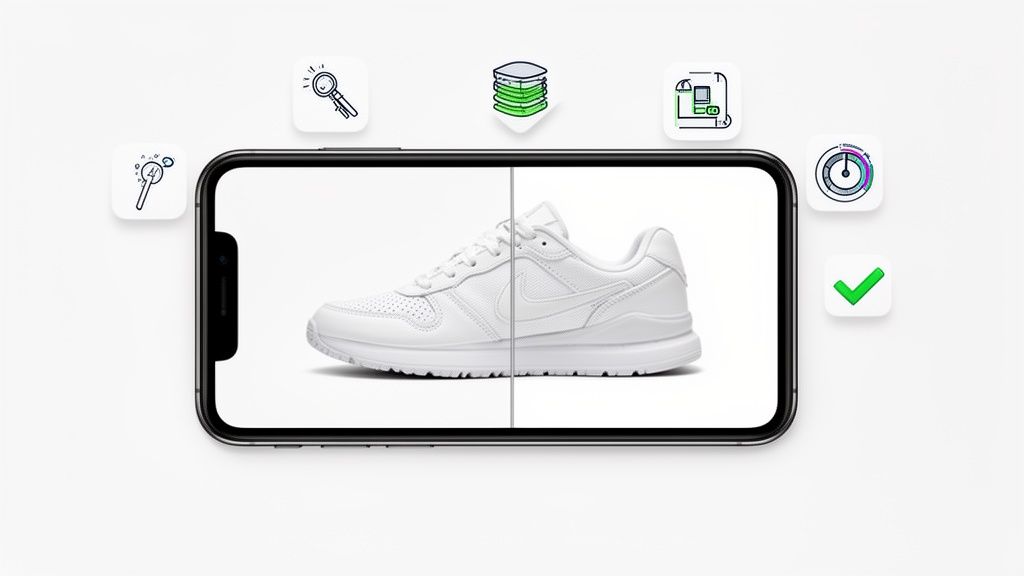
Let's be real—if you think you need a big budget and a fancy studio for professional product photos, I've got some good news. The right free AI photo editor can take a quick smartphone picture and turn it into a high-converting image for your store.
We’re talking about tools that offer one-click background removal, give you high-resolution exports, and even have marketplace-ready templates built right in, all without opening your wallet.
Transform Your Product Photos with Free AI Editors
Forget the generic reviews that list a hundred features. We're going to focus on what actually moves the needle for your e-commerce sales and makes your life easier. This isn't about applying a cool filter; it's about creating clean, consistent product images that build trust with your customers and get them to click "buy."
The best free editors automate the tedious, time-sucking tasks so you can get back to what you do best: growing your business.

This guide is all about giving you a practical way to find the perfect tool, whether you're selling handmade jewelry on Etsy or listing electronics on Amazon. We’ll cut through the noise and zero in on what truly matters for online sellers.
What to Look for in a Free AI Photo Editor
When you're sorting through the options, some features are simply non-negotiable for e-commerce. You need tools built for business, not just for creative effects.
I've put together a quick table to break down the must-have features. Think of this as your checklist for evaluating any free AI photo editor.
Essential Features for a Free E-commerce AI Photo Editor
| Feature | Why It Matters for E-commerce | What to Look For in a Free Tool |
|---|---|---|
| Precise Background Removal | This is the foundation of a clean, professional look. It isolates your product and eliminates distractions. | The AI should handle complex edges without leaving halos or chopping off parts of your product. Test it with tricky items. |
| High-Resolution Output | Low-res images look unprofessional and untrustworthy. Customers need to zoom in and see details clearly. | Look for tools that allow downloads of at least 1024×1024 pixels, preferably higher. Avoid any that cap you at a low resolution. |
| Batch Processing | Editing one photo at a time is a massive bottleneck, especially if you have a large inventory. | A true time-saver. The best tools let you upload a whole folder and apply the same background removal or template to all of them at once. |
| Marketplace Compliance | Amazon, eBay, and others have strict rules (like pure white backgrounds). Non-compliance can get your listings rejected. | Find an editor with built-in presets or templates specifically for major marketplaces. This removes the guesswork. |
Getting these four features right in a free tool is a huge win for any online seller. It covers the core technical requirements for almost any platform.
For a deeper look at the strategy behind creating images that sell, this guide on clothes product photography that converts is an excellent resource. Knowing the "why" will help you get the most out of any tool you choose.
The most effective free AI editors don't just swap backgrounds; they create an entire workflow. They help you go from a quick snap on your phone to a storefront-ready image in just a few minutes, not hours.
Plenty of tools claim to do it all, but finding one that truly nails these specific functions is what will make a real difference for your store.
Of course, if you're looking to create entirely new scenes from scratch, you might want to check out our guide on the ProdShot AI product photo generator. But for now, let's focus on perfecting the photos you already have.
How to Choose the Right Free AI Editor for Your Store
The market is flooded with free AI photo editors, and it can feel like a minefield trying to find one that actually works for an e-commerce store. It’s a critical choice. Your product images are what sell your products, and a bad editor can cost you more in lost sales than a good one would ever cost to buy.
A lot of these tools promise the world, but the real test is how they handle the tricky stuff.
Don’t just feed the AI a perfect photo of a simple white box. That’s easy. Instead, you need to push its limits. Upload a picture of a fuzzy sweater, a delicate necklace with tiny chains, or a glass bottle. These are the images that separate the genuinely useful tools from the toys.
The best ai photo editor free options will cut out these complex items with clean edges and minimal "halos." If the AI gives you a jagged, messy cutout on a tough subject, you’ll just end up doing manual cleanup, which defeats the whole point.
Evaluate Output Quality and Resolution
After you’ve tested for accuracy, the next deal-breaker is output quality. A low-resolution image just looks amateur, and it stops customers from zooming in to see the details—a huge part of the online buying decision. This is where a lot of "free" tools get you.
Before you get too invested, run a test image and go straight to the export settings. What’s the highest resolution you can actually download?
- Bare Minimum: 1024×1024 pixels. This might be fine for small thumbnails but not much else.
- Good: 2048×2048 pixels. This is a solid resolution for most e-commerce platforms and gives customers a decent zoom experience.
- Excellent: 4K resolution or higher. This gives you maximum flexibility for cropping, future-proofing your images for high-end marketing materials.
If a tool caps your downloads at a low resolution, just walk away. It’s not a serious option for a growing online store.
Check for Marketplace Compliance and Hidden Limits
Finally, you have to think about the practical side of selling online. Your photos need to follow the rules for platforms like Amazon, Shopify, or Etsy. A good AI editor should have built-in settings or templates that make this easy, especially for creating that perfect pure white background (RGB 255, 255, 255).
Watch out for the "freemium" catch. Many tools seem free until you try to download your image and get hit with a giant watermark or a message that you’ve hit your daily export limit. Always read the fine print before you sink time into editing.
For a broader sense of what good, accessible AI tools can do, you can even check out lists of the best free AI-powered apps for interior design. They often showcase features around visual creation and editing that have parallels in product photography.
Ultimately, you need a tool that works with you, not against you. Finding one that supports your workflow without hidden tricks is the key to creating great images efficiently and helping your store thrive.
Your Practical Workflow from Smartphone to Storefront
Theory is one thing, but let's get our hands dirty. I'm going to walk you through a real-world scenario, taking a product from a quick smartphone picture to a polished, storefront-ready image using a free AI photo editor.
This is the exact, repeatable process you can start using today.
You don’t need a fancy lighting rig to get started. Just grab your smartphone and find a spot with good, indirect natural light—think near a window, but not in a harsh sunbeam. Place your product on a simple, contrasting surface. A piece of white poster board from the dollar store works wonders. Snap a few clear, focused shots.
From Raw Photo to Polished Product Image
Alright, let's fire up a free AI editor. Our mission is to create two completely different images from that one photo: a classic white background shot for Amazon and a more creative lifestyle scene for your social media feed.
Go ahead and upload your best shot. The very first thing you'll do is one-click background removal. This is the moment of truth for any AI editor. A good one will instantly and cleanly isolate your product from that poster board, leaving no weird, fuzzy halo around the edges.
Next, you'll want to center and align the product. Most of these tools have a simple drag-and-drop interface. Make sure your product is perfectly centered with a bit of breathing room around it. That balanced negative space is what gives it a professional feel.
Here's a pro tip that's easy to miss: use the AI's enhancement tools to tweak the lighting and add a shadow. A good editor can subtly brighten your product and generate a soft, realistic drop shadow. This tiny detail is what makes your product look grounded and 3D, not like a flat sticker slapped on a background.
Creating Marketplace and Social Media Visuals
For that Amazon-ready image, just select a pure white background. This is a standard feature, and the result should be a crisp, compliant photo you can drop right into your main product listing. The whole workflow—upload, remove background, center, and export—can take less than 60 seconds.
This flowchart breaks down the three most important things to look for when you're choosing an editor for this exact task.

As you can see, it all comes down to accuracy for the cutout, high resolution for quality, and compliance for marketplace rules. A solid free tool has to deliver on all three.
Now for the social media version, it's time to have some fun. Instead of plain white, use the AI to generate a brand new scene from a text prompt. You could type in something like "on a marble countertop next to a small plant" or maybe "on a rustic wooden table." The AI will then create a unique, context-rich background that makes your product shine.
Here’s a quick recap of the entire workflow:
- Shoot: Take a clear photo in good, natural light.
- Upload: Get the image into your chosen free AI editor.
- Edit: Use the one-click background removal and AI enhancement tools.
- Export: Create two versions—one with a white background for marketplaces and another with a custom lifestyle scene for social media.
This dual-purpose method lets you get maximum mileage out of a single photo. Just remember to double-check the output resolution. If your final images are too small for a platform's requirements, you might need a dependable tool to resize them without losing quality. You can learn more about how to use an online image resizer to get your images just right. It's an incredibly efficient way to save time, whether you're selling handmade jewelry or high-tech gadgets.
Troubleshooting Common Glitches in Free AI Editors
Free tools are fantastic, but let's be real—they can get a little quirky. As you're hunting for the best AI photo editor free for your shop, you're bound to hit a few frustrating snags. Think of this as your field guide for fixing the most common issues without wanting to throw your computer out the window.

The most frequent headache I see is a messy cutout. The AI might chop off the edge of your product or, worse, leave a jagged, unprofessional "halo" around it. This is a classic problem with complex items like fuzzy sweaters, intricate jewelry, or anything with fine details.
Refining Imperfect AI Cutouts
When the AI botches a cutout, don't just delete the image and start over. Almost every free editor has some kind of manual touch-up tool. You’re looking for features labeled "refine edge," "mask," or a simple "restore/erase" brush.
Your best bet is to zoom in as close as you can. Using a small, soft-edged brush, carefully paint back any parts of your product the AI accidentally removed. To get rid of those ugly halos, switch to the eraser tool and gently clean up the unwanted pixels around the border. It takes a little patience, I know, but it’s almost always faster than re-shooting or re-uploading.
One more pro-tip: try re-uploading the photo at a higher resolution if you have one. Sometimes, just giving the AI more data to work with is all it needs to nail the cutout on the second try.
Correcting Inaccurate Colors
You’ve nailed the shot and the edit, but the product color on your screen is just… off. This is more than just a minor annoyance; it’s a conversion killer. Customers who get an item that doesn't match the photo are 64% more likely to return it.
Most free AI editors have basic color correction sliders tucked away somewhere. Find the controls for "Hue," "Saturation," and "Temperature." A tiny tweak to the hue or temperature is often all it takes to snap the digital color back in line with the real-world product.
Seriously, put the physical product right next to your monitor for this part. Don't try to get it right from memory. A direct side-by-side comparison is the only way to ensure what customers see is what they'll get.
Handling Watermarks and Export Limits
Ah, the classic "gotcha" of free software: the surprise watermark or a ridiculously low export resolution. There's nothing worse than spending 20 minutes on an edit only to find you can't export a usable image.
Here’s how you can work around these limitations:
- Strategic Cropping: If the watermark is tucked into a corner, you might get lucky and be able to crop it out without wrecking your composition.
- Test Before You Edit: This is my number one rule. Always run a quick test export on a single, unedited image before you dive in. This instantly reveals any hidden watermarks or resolution caps and saves you a ton of wasted time.
- Stack Free Trials: It’s not a sustainable long-term strategy, but for a one-off urgent project, you can sometimes hop between the free trials of different tools to get your images out without watermarks or other limits.
If you go in expecting these little quirks, you'll be much better prepared to handle them. Navigating the world of free AI editors is totally doable, and you can still end up with fantastic product photos that drive sales.
So, when is it time to graduate from a free tool to a professional solution?
Free AI photo editors are an absolute lifesaver when you're just getting started. They can get you from zero to pretty-decent product shots incredibly fast. But there comes a point in every growing business where "free" starts to feel very, very expensive in terms of wasted time and lost sales.
Knowing when you’ve hit that ceiling is the key to scaling up without pulling your hair out.
The signs are usually small at first. You’ll find yourself spending more time fixing images than you do actually selling. That AI background removal that was “good enough” for your first few products suddenly leaves jagged, pixelated edges on a new line of intricate jewelry. What used to be a one-minute job is now a ten-minute manual cleanup, and when you’re adding dozens of new SKUs, that time adds up fast.
When Your Time Becomes More Valuable Than a Free Tool
Your workflow is the first place you’ll start to feel the pinch. A free editor might be fine for a handful of products, but what happens when you have 50 new items to upload? Without solid batch processing, you’re stuck in a soul-crushing loop: upload one, edit one, download one. Repeat.
It’s time to upgrade when you see these clear signs:
- Manual fixes are piling up. You consistently spend more than a minute or two per image cleaning up AI cutouts or tweaking colors.
- Your branding is inconsistent. Your product photos just don’t have that uniform, professional look because the tool can’t create consistent shadows or apply style templates.
- Team access is a nightmare. You can’t easily collaborate with a virtual assistant or team member inside the editor, which leads to messy file sharing and confusing feedback.
The real cost of a "free" tool is the time you spend working around its limitations. When your hourly effort is worth more than the cost of a professional subscription, it’s time to upgrade.
This is precisely where a dedicated solution like ProdShot comes in. It’s built to crush these scaling problems.
A professional tool gives you an interface designed for speed and volume, not just one-off edits.
The dashboard is built for efficiency, allowing you to manage large batches of images with consistent results—something you’ll rarely find in a free alternative.
The Tangible ROI of a Professional Platform
Moving to a paid platform isn't just another business expense; it's a strategic investment to buy back your time and seriously elevate your brand's image. A free tool gets you on the board, but a professional solution like ProdShot offers features that directly boost your bottom line.
Think about the capabilities you suddenly unlock:
- Perfect Shadow Generation: This creates realistic, consistent shadows that make your products look grounded and professional across your entire catalog.
- Team Collaboration: You get a central hub where your whole team can edit, review, and manage product visuals without stepping on each other's toes.
- API Access: This is a game-changer for automation. You can integrate directly with your e-commerce platform to update images without any manual work.
- Guaranteed Quality: It delivers flawless, high-resolution cutouts every single time. No more manual touch-ups, just peace of mind that your products always look their best.
For businesses that demand an even higher level of polish, exploring professional product photo editing services can be an eye-opener. The difference in quality is immediately obvious.
Ultimately, the decision to graduate comes down to a simple math problem: is the time you’re wasting on manual edits and fixing inconsistencies costing you more than a subscription? For most growing stores, the answer is a resounding yes.
Common Questions About Free AI Photo Editors, Answered
Whenever I talk to online sellers about free AI photo editors, the same few questions always pop up. It's natural to be a little skeptical when the word 'free' is involved, especially when your product images are on the line.
Let's cut through the noise and tackle those big questions head-on. These are the honest answers I give to sellers who are trying to figure out if these tools are the real deal for their e-commerce store.
Can You Really Get Professional Quality from a Free Tool?
For most standard product photos, the answer is a surprising yes. The best ai photo editor free options have gotten incredibly good at the bread-and-butter tasks of e-commerce.
They excel at creating those crisp, clean, white-background shots that platforms like Amazon and Shopify demand. The AI has been trained on millions of product images, so it's fantastic at isolating your product and wiping out a messy background. Just start with a decent photo from your smartphone, and you can get results that look completely professional to your average customer.
Of course, if you're creating a complex, artistic scene for a magazine spread, you’ll probably want the fine-tuned control of a paid, professional suite. But for your day-to-day product listings? Free tools are often more than enough to get the job done right.
Will My Photos Have Watermarks?
This is the big "gotcha" you have to watch out for, and the answer is: it depends entirely on the tool.
- Truly Free: The best free editors give you their core features without any strings attached. No watermarks, no funny business. These are the gems you're hunting for.
- Freemium Traps: Many others will let you do all the editing, only to slap a watermark on your final image. Their hope is you'll get frustrated enough to upgrade to a paid plan.
My best advice is to run a quick test before you commit any real time. Just upload a test photo and hit the export button right away. This five-second check will tell you if a watermark is going to be an issue and can save you a world of frustration later.
Are These AI-Edited Photos Compliant with Marketplaces?
Generally, yes. The number one technical requirement from most marketplaces is a pure white background, which is RGB (255, 255, 255). Nearly every AI background remover on the market can nail this perfectly.
The other key is making sure the tool can export a high-resolution image (aim for at least 1024×1024 pixels) and, as we just discussed, that it doesn't add a watermark. As long as you can check those two boxes, your photos should be fully compliant and ready to go live on all the major e-commerce platforms.
If you're tired of working around the limitations of free tools and ready for consistently perfect, high-volume product photos, it might be time to see what a professional solution can do. ProdShot is designed to eliminate these headaches, offering flawless AI editing, team collaboration, and batch processing that scales with your business. Give your brand the professional edge it deserves. Learn more about ProdShot.