

To really nail your product photos, you need tools that let you edit photo background color quickly and effectively. Whether you're a fan of automated AI editors or prefer the hands-on control of a program like Photoshop, the mission is the same: create clean, professional images that put your product on a pedestal. A great background makes the subject the hero and starts building customer trust from the very first glance.
Why Background Color Can Make or Break Your Sales
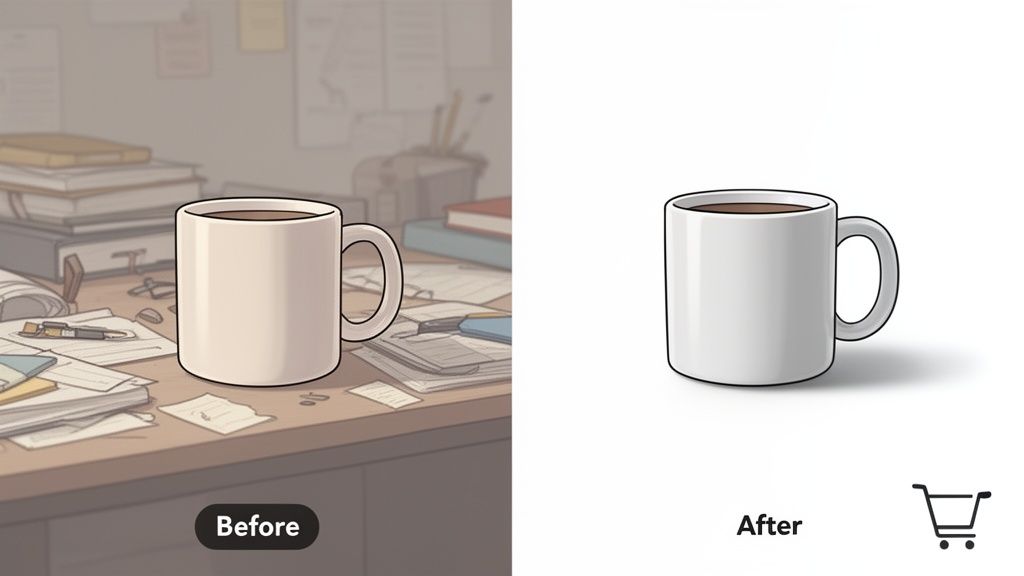
The color behind your product is so much more than a design choice. Think of it as a critical sales tool that shapes perception and guides buying decisions. It’s the silent partner in your product photography, working to either build confidence or create a distraction. A clean, intentional background screams professionalism and lets the customer focus on what matters—your product's details, texture, and quality.
Picture a shopper scrolling through a crowded marketplace like Amazon or Etsy. They're flying through dozens of listings in seconds. An image with a busy, cluttered background? It looks amateurish, maybe even untrustworthy, and it’s an easy skip. In contrast, a crisp white or neutral background makes the product pop, creating a shopping experience that feels legitimate and safe.
The Direct Impact on Customer Trust
A consistent, professional look is non-negotiable for building a credible brand. When every single product photo shares a cohesive background style, it tells customers you’re an established, detail-oriented business they can rely on. This consistency should ripple out from your product listings to your entire storefront, social media, and marketing.
For instance, a bold, on-brand color used across your Instagram feed can stop a potential customer mid-scroll, making your products instantly recognizable. That strategic use of color transforms a simple photo into a powerful branding asset.
Turning Clicks into Conversions
At the end of the day, it's all about converting viewers into buyers. Poorly executed backgrounds can create a mismatch between what a customer expects and what they get, which is a massive driver of returns. In fact, research shows that inconsistent or misleading visuals are to blame for nearly 30% of all returns—a huge, costly problem for any e-commerce seller.
Getting the background right makes your product's value crystal clear, polishes the user experience, and directly helps to improve conversion rates.
A great photo background doesn't just look good—it reduces friction in the buying process. It removes visual noise, clarifies the product's value, and gives the customer confidence to click "add to cart."
For sellers on Etsy and eBay, turning smartphone pictures into compelling listings is everything. Data even shows that pages with multiple high-quality images can pull in up to 9 times more organic traffic. That stat alone proves a simple background edit is a direct investment in your store’s visibility and success. It's a fundamental step toward building a store that not only looks professional but actually performs better.
The Instant Method: AI-Powered Background Editing
Let's be honest, not everyone has the time or patience to learn a complex program like Photoshop just to change a background color. This is where AI editors have completely changed the game. They’ve managed to turn what used to be a frustrating, hour-long task into a few clicks.
Think about this real-world scenario: you've just finished a beautiful handmade necklace and snap a quick picture of it on your wooden desk. The product looks great, but the background is messy and distracting. In the old days, you’d be stuck. Now, with an AI tool, you can upload that photo, and the technology will intelligently remove the entire background, leaving you with a perfectly isolated product.
From Raw Photo to Polished Listing
Once the clutter is gone, the fun part begins. You have a clean slate and can now add a new background that truly serves your purpose.
- Selling on Marketplaces? If you're listing on a site like Amazon, you know they have strict rules. You can instantly drop in a pure white background (#FFFFFF) and meet their requirements in seconds.
- Building a Cohesive Brand? Want every image on your website to have that consistent, professional feel? Just pop in your brand's specific hex code, and you're done. No more guessing or color-matching.
- Making Your Product Pop? Sometimes, you just need to experiment. You can test out a dozen different colors—from vibrant gradients to soft pastels—to see what makes your product look its absolute best.
This is a huge deal. The ability to try out different looks so quickly is an incredible advantage. You can generate multiple versions of a single image for different platforms in less time than it would take to even get started with traditional software. If you're looking for a tool that handles the entire workflow, from cleanup to final shot, check out an AI product photo generator to see it in action.
The Power of One-Click Creativity
The real magic of modern AI isn't just cutting things out; it’s the ability to handle surprisingly complex edits with almost no effort on your part. For instance, some platforms offer advanced features like AI-powered image background restyling, letting you make sophisticated changes with a simple prompt or click. You can add realistic shadows or even place your product in an entirely new scene.
AI editing doesn't replace your creativity; it just removes the technical headaches that get in the way. It lets you focus on the big picture—like choosing the right background—instead of getting bogged down in the tiny details of how to make it happen.
Instead of meticulously tracing around your product with a mouse for an hour, you can now put that time back into what really matters: marketing your products, talking to customers, and actually growing your business. For a solo entrepreneur or a small team, this kind of efficiency is priceless. The AI does the grunt work, leaving you to be the creative director.
AI tools are fantastic for speed, but there are times when you need absolute, pixel-perfect control. For those projects, nothing beats the power and precision of Adobe Photoshop. When you need to nail every last detail by hand, it’s still the undisputed king of photo editing.
Jumping into Photoshop to edit a photo's background color puts you in the driver's seat. Your first task is to separate the subject from its background. Thankfully, modern Photoshop makes this a breeze with the Object Selection Tool. It uses some pretty smart AI to find the main subject with just one click, getting you most of the way there instantly.
This initial selection is usually about 80-90% accurate, but the real magic—the professional touch—happens in the refinement stage. This is where you'll make sure your subject is cleanly isolated from everything else.
Refining Your Selection for a Flawless Cutout
Once you have that rough outline, the Select and Mask workspace is where you'll spend some quality time. This feature is purpose-built for fine-tuning edges, especially for tricky subjects like fuzzy sweaters, intricate jewelry, or anything with fine, flyaway details.
Inside this workspace, the Refine Edge Brush is your go-to tool. As you paint over complex areas, Photoshop analyzes the pixels to create a far more natural-looking edge. This is the crucial step that helps you avoid that harsh, "cut-out" look that instantly signals an amateur job.
The goal is to make the final image look like it was shot on the new background from the start. A clean, believable edge is everything.
Taking a few extra minutes to zoom in and perfect these edges really pays dividends. It’s what gives your final image a polished, high-end feel that builds trust and makes your products look more valuable. For a deeper dive into these techniques, check out our guide on professional product photo retouching.
Deciding what kind of background to use depends entirely on your goal. Are you selling on a marketplace or building your brand? This decision tree can help you choose the right path.
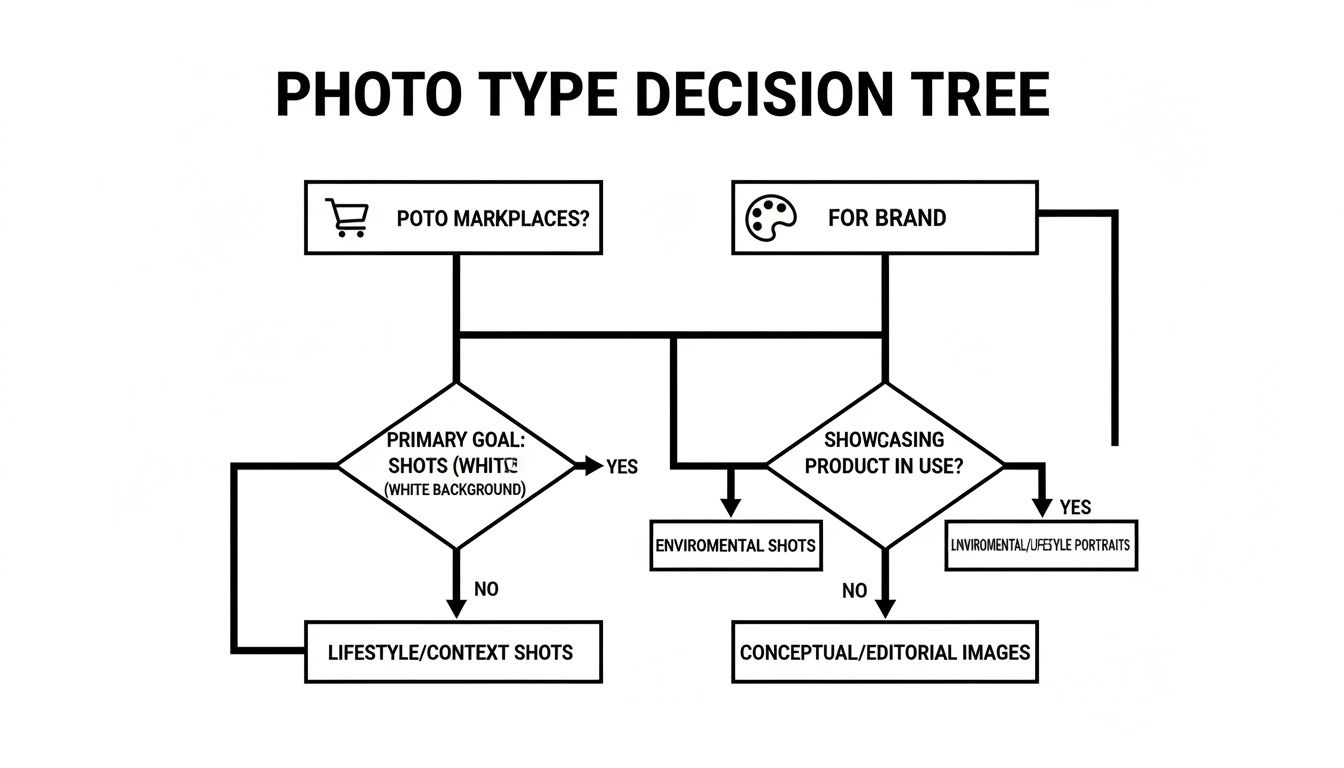
As you can see, marketplace listings demand clean, compliant backgrounds, while brand-focused images give you the freedom to get creative with color.
Applying and Perfecting the New Background Color
With your subject perfectly isolated on its own layer, adding the new background is straightforward. The professional way to do this isn't by just dumping paint onto a new layer. Instead, use a Solid Color fill layer. This is a non-destructive method, which means it offers incredible flexibility down the line.
Here’s why it’s the better approach:
- Effortless Adjustments: Need to try a different shade? Just double-click the fill layer's thumbnail to pull up the color picker. You can experiment with dozens of colors without redoing any work.
- Brand Consistency: You can plug in your brand’s exact hex code, guaranteeing every single product photo is perfectly on-brand.
- Preserves Quality: Because it’s an adjustment layer, it doesn't degrade your image quality, no matter how many times you tweak the color.
Once your new color is in place, I always recommend adding a subtle drop shadow. This small touch grounds the product, giving it a sense of depth and making the whole composition feel much more realistic. It’s the final detail that pulls everything together.
Editing on the Go with Mobile Apps and Online Tools
Not everyone is chained to a desktop, and frankly, you don't need a beast of a machine to change a photo's background color anymore. If you're an entrepreneur, an Etsy seller, or a social media manager, your phone is often your office. Thankfully, mobile apps and browser-based editors are built for this reality, delivering speed and convenience so you can create stunning product shots from just about anywhere.
These tools are all about efficiency, boiling down complex editing tasks into a few simple taps. Picture this: you're at a craft fair and snap a fantastic photo of your newest product on the display table. Instead of waiting to get back to your computer, you can pull out your phone, swap the background, and post it to your social channels in minutes. You get to capture the buzz of the event in real time.
One-Tap Edits with PhotoRoom
For anyone on mobile who needs clean, marketplace-ready images fast, PhotoRoom is a game-changer. Its most impressive feature is the incredibly accurate one-tap background remover. Just upload your picture, and the app’s AI isolates your product with surprising precision, even handling tricky details like fur or flyaway hairs.
From that point, changing the background color is dead simple. Let's say you need a new primary image for an eBay listing that requires a pure white background.
- You'd start by uploading your product photo into PhotoRoom.
- The app instantly and automatically removes the background.
- Next, you just tap on the "White Background" template.
- Finally, export the high-resolution image right to your camera roll.
The whole thing often takes less than a minute. That speed is a massive win when you're managing dozens of listings and need a consistent, professional look across your entire store.
Just be careful not to overdo it. The goal is to enhance, not create something totally artificial. Over-retouching is a real problem; a surprising 56.5% of consumers say they distrust brands that do it. The demand for simple, effective tools is clear—the AI image editing software market has seen 441% year-over-year growth. You can dive deeper into this trend and see how big brands manage thousands of product shots by reading the full research on e-commerce photography.
Creating Branded Content with Canva
While PhotoRoom is brilliant for quick, clean cutouts, Canva is where you turn those cutouts into branded marketing assets. Its background remover tool (part of the Pro subscription) is just as good, but its real power lies in connecting your product visuals to a massive library of templates for social media posts, stories, and ads.
A Shopify store owner, for instance, could use Canva to whip up a new Instagram post announcing a flash sale.
After removing the background from your product photo in Canva, you can instantly drop it into a branded template. Add your brand colors, fonts, and sale information to create a cohesive, eye-catching graphic that's ready to post.
This kind of workflow is perfect for building a strong, consistent visual identity. You're not just posting a product on a plain background; you're creating a piece of content that reinforces your brand with every share.
And for those who want that power built right into their e-commerce backend, a dedicated Shopify photo editor can be the perfect bridge between a raw photo and a listing that’s ready to convert. Mobile and online tools have truly leveled the playing field, making professional photo editing accessible, fast, and incredibly effective for any business owner on the move.
Choosing the Perfect Background Color for Your Brand
Knowing how to change a background color is one thing, but figuring out what color to use is where the real magic happens. This is where strategy and creativity meet. Your choice can make your product the star of the show or create a visual mess that costs you a sale. The most important thing to think about is where the photo is going to end up.
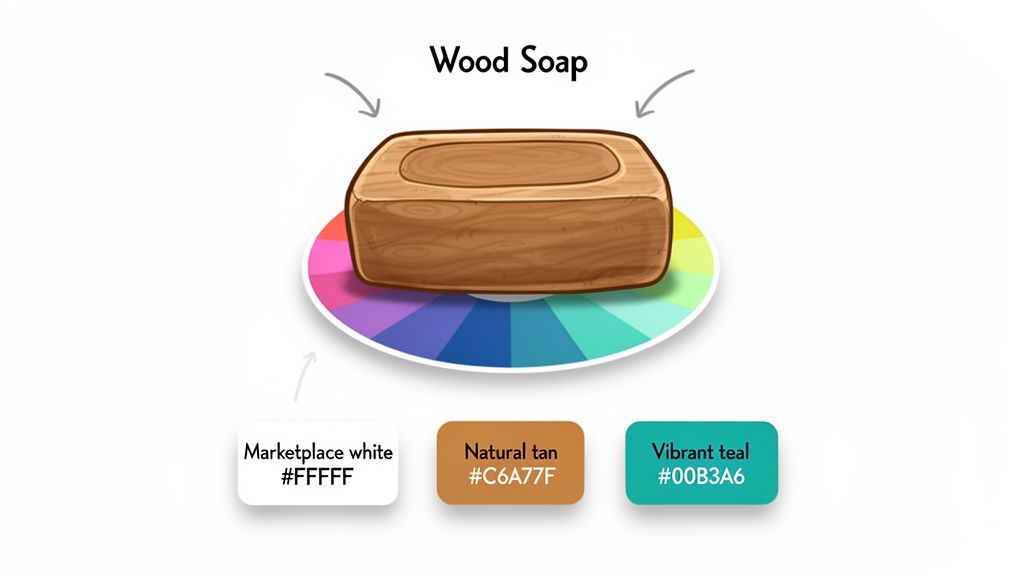
When you're selling on major marketplaces, the rules are usually decided for you. Amazon and eBay, for instance, almost always require a pure white background (#FFFFFF) for the main product shot. This isn't just a random preference; it’s a deliberate choice to create a clean, consistent shopping environment that builds trust and keeps the focus squarely on the products.
This uniformity makes it easier for people to compare items at a glance, and sticking to the rules is mandatory if you want your listings approved and seen.
The Psychology of Color in Branding
Once you step outside the marketplace—say, for your own website or social media feeds—your background color becomes a massive part of your branding. The hue you pick sends a message long before anyone reads a single word of your product description. In fact, research on color in marketing has shown that up to 90% of snap judgments about products can be based on color alone.
So, what feeling are you trying to create?
- Natural and Organic: Think about soft, earthy tones. Sage green, beige, or a warm terracotta work wonders for wellness products, skincare, or handmade goods. They give off a vibe of calm and authenticity.
- Modern and Innovative: For tech gadgets or a new fashion line, bright, energetic colors like electric blue, vibrant orange, or a bold fuchsia can make the product feel exciting and fresh.
- Luxurious and Premium: If you're selling high-end jewelry or gourmet foods, deep, rich colors are your best bet. Navy, emerald green, or charcoal gray can signal quality and sophistication.
Your background color sets the stage for your product's story. A well-chosen hue aligns with your brand's personality and connects with your target audience on an emotional level, making your product feel more desirable.
Using Contrast to Your Advantage
A great background should complement your product, not compete with it. A simple color wheel is an invaluable tool for this. To make your product truly pop, find a shade on the opposite side of the wheel from your product's main color. This creates a strong, eye-catching contrast.
For example, if you're photographing a gorgeous, golden-yellow handbag, a deep purple background will make it look incredibly vibrant. If your product is a rich red, a soft green background will create a natural focal point.
The goal is always to make your product the undeniable center of attention. When you're this thoughtful about your color choice, a simple background edit becomes a powerful sales tool.
Frequently Asked Questions About Changing Background Colors
Even when you know the steps, editing a photo's background color can throw a few curveballs your way. I've seen these same questions pop up time and time again from both beginners and seasoned pros. Let's get them answered so you can spend less time troubleshooting and more time creating.
One of the biggest worries I hear is about losing image quality. Will swapping the background make my photo look blurry or pixelated? It's a valid concern, and the answer comes down to your starting point. You have to start with the highest-resolution photo you can get your hands on. Editing can't magically create detail that isn't there, so a sharp source file is the foundation for a professional-looking result.
When you're ready to save, think about where the image will live. For websites and social media, exporting at 72 PPI (pixels per inch) is the sweet spot. If it's destined for print, you'll need a much denser 300 PPI. Getting this right ensures your photo looks just as crisp on a screen or on paper as it did in your editor.
How Do I Handle Tricky Edges?
What about those nightmare-level subjects, like a fluffy sweater or a plant with a million tiny leaves? This is where a manual tool like Photoshop has traditionally been the go-to, but frankly, today's AI tools have gotten incredibly good at this.
The secret isn't just the tool; it's the refinement. Whether you're in Photoshop's “Select and Mask” workspace or using an AI editor, the game-changer is taking that extra minute to zoom in and tidy up the selection. That small effort is what separates an okay composite from a truly believable one.
Then you have reflective or transparent objects like glassware and jewelry. These are tough because they literally reflect their original surroundings. Once you remove the background, you might see a weird green or blue tint left on the object. In these cases, you’ll likely need to do some targeted color correction on the object itself to neutralize those leftover color casts and make it look right on the new background.
What if the Lighting Looks Wrong?
This is a classic problem. You take a photo of your product in a warm, cozy room, but when you place it on a stark white background, it just looks… off. The lighting simply doesn't match.
The fix is usually pretty quick. Dive into your editing software's color balance or temperature sliders. A slight adjustment to cool down the warmth or neutralize a color cast can make the product's lighting feel more neutral and intentional. This simple tweak helps the subject blend in perfectly, creating a far more cohesive and professional shot.
Ready to sidestep the troubleshooting altogether? ProdShot’s AI can handle background removal, lighting adjustments, and all the tricky bits for you in seconds. Give it a try for free and see how easy it can be.