
A blurry, pixelated photo isn't just an eyesore; it's a roadblock standing directly between your product and a paying customer. For anyone selling online, knowing how to fix a pixelated picture is less of a "nice-to-have" skill and more of a necessity that can make or break your sales.
Why Pixelated Pictures Are Quietly Killing Your Sales
Picture this: a shopper lands on your Shopify store, finds exactly what they're looking for, and zooms in to check the details. Suddenly, the image breaks apart into a blocky, unclear mess. That initial spark of interest fizzles into doubt. It’s a scene that plays out countless times a day, sabotaging sales on every platform from Etsy to Amazon.
A pixelated image screams unprofessionalism. It subtly communicates a lack of care, making a potential buyer wonder if the product itself will be just as sloppy.
The Real-World Cost of Bad Photos
This goes way beyond simple aesthetics—it hits your bottom line. In a market where visuals are everything, customers depend on high-quality photos to make their buying decisions. When your images are subpar, that trust disappears.
Shoppers can't see the texture of a sweater, the fine details of a piece of jewelry, or the specific features on an electronic device. That uncertainty is a direct path to an abandoned cart. The numbers are staggering: in the $308 million USD eCommerce photography market, a whopping 58% of shoppers ditch their carts because the product images just aren't good enough. With global online sales hitting $6.86 trillion, those visual flaws add up to a massive amount of lost revenue.
It's not just about lost sales, either; it's about making the most of the traffic you have. You can learn more about effective content monetization strategies to see how visuals fit into the bigger picture.
It's a simple truth I've seen play out for years: customers buy with their eyes. A grainy photo creates hesitation, but a crisp, clear image gives them the confidence they need to click that "Buy Now" button.
Building Trust Through Clear Visuals
At the end of the day, every photo on your website is a direct reflection of your brand. Investing in sharp, professional-looking images—or learning how to fix a pixelated picture when a reshoot isn't an option—is a direct investment in your brand's credibility.
Consistently great images do more than just show off a product. They signal a deep commitment to quality that customers absolutely notice. This visual standard builds a trustworthy brand identity that encourages not only first-time purchases but also long-term loyalty. It shows you care about the entire customer journey, from their first click to the moment they unbox their order.
What's Really Causing Your Photos to Look Pixelated?
Before we dive into fixing a pixelated photo, we need to get to the root of the problem. What’s actually happening when an image turns into a blocky mess?
Think of any digital photo as a giant mosaic made up of tiny, single-colored squares. These are the pixels. When you have millions of them packed together, your eye perceives a smooth, continuous image. Pixelation is what happens when you don't have enough of those tiles to create a clear picture, so your brain starts to see the individual squares.
Ever had this happen? You snap a great shot of your new product—let's say some handmade earrings for your Etsy shop—and it looks perfect on your phone. But when you upload it to your product page and the website blows it up, it suddenly looks jagged and unprofessional. That’s pixelation, and it’s usually caused by a few common culprits.
The Low-Resolution Trap
The number one cause is starting with a low-resolution image. Simply put, the photo just doesn't have enough pixels to work with. When you try to make it bigger, the software has to guess what to fill the new space with. Its only option is to stretch the pixels you do have, which makes each one larger and more visible.
This is a classic problem when you grab an image from the web or use a thumbnail someone sent you. Those files are deliberately small to save bandwidth and load fast, but they were never meant to be displayed at a large size. Getting a handle on concepts like understanding 4K resolution can really help clarify why starting with more pixel data is always better.
If your source image is tiny, you're fighting an uphill battle. You can learn more about the ideal dimensions for different platforms using a good image resizer.
How Compression and Digital Zoom Ruin Quality
Another major factor is image compression. File formats like JPEG are fantastic for keeping file sizes small, but they achieve this by permanently throwing away some of the image data. If the compression is too aggressive, you’ll start to see blotchy artifacts, especially around sharp lines or in areas of solid color. This problem gets even worse every time you re-save a JPEG, as the quality degrades a little bit more with each pass.
Digital zoom is another guaranteed path to a grainy photo. When you pinch-to-zoom on your phone, you’re not using a real lens to get closer. You’re just telling the phone to crop a small portion of the sensor’s image and blow it up. It’s the digital equivalent of taking a small photo and stretching it out—a recipe for pixelation.
The biggest takeaway is this: always start with the highest quality source image possible. It's far easier to prevent pixelation by shooting with the right settings than it is to fix a pixelated picture after the fact.
To help you troubleshoot your own photos, I've put together a quick guide to pinpoint what might be going wrong and how to stop it from happening again.
Common Causes of Pixelation and How to Avoid Them
| Cause | What It Looks Like | How to Prevent It |
|---|---|---|
| Low Resolution | The entire image looks blocky and jagged, especially when enlarged. | Shoot in the highest resolution your camera or phone allows. Don't use small web images for large prints. |
| Over-Compression | You see blocky artifacts and "halos" around sharp edges or in gradients. | Save images in a high-quality format (JPEG at 90% or higher) or use PNG for graphics with sharp lines. Avoid re-saving JPEGs. |
| Digital Zoom | The photo appears grainy, lacks fine detail, and looks soft or blurry. | Physically move closer to your product instead of using the zoom feature on your phone or camera. |
Hopefully, this table gives you a clear checklist to run through next time you're setting up a product shoot. Prevention is always the best cure.
Your Modern Toolkit for Fixing Pixelated Images
When you’re staring at a blurry product photo, the old-school reflex is to fire up Photoshop. For years, that was the only real option. A skilled designer would dive into filters like "Unsharp Mask" or "Smart Sharpen," spending ages nudging sliders back and forth, trying to find that perfect balance of radius and threshold to make things look a little crisper.
And look, those manual techniques still have their place. They give you absolute control, letting you target specific problem areas. But what they’re really doing is just boosting the contrast along the edges of objects in your photo. Push it too far, and you get those weird, unnatural halos or end up highlighting all the grainy noise you were trying to fix. It takes a good eye and a lot of patience.
For a busy store owner, spending half an hour wrestling with a single photo is a non-starter. That’s where the newer tools come in, offering a much faster—and often much better—way to fix a pixelated picture.
The Rise of AI Image Enhancement
Here’s the thing about artificial intelligence: it doesn’t just sharpen a photo, it actually rebuilds it. Traditional filters are stuck working with the pixels you give them. AI is different. These algorithms are trained on massive libraries of high-quality images, learning to recognize everything from the texture of denim to the shine on a silver ring.
So when you feed a pixelated image into an AI enhancer, it doesn't just guess. It analyzes the blurry mess and intelligently generates brand-new, clean pixels to fill in the missing information. It’s making highly educated predictions based on all that training.
This is why AI can pull off results that are simply impossible with manual sharpening. It can:
- Restore Lost Detail: It genuinely brings back fine details that were completely lost in the low-resolution version.
- Reduce Noise and Artifacts: It cleans up the blocky compression artifacts without smudging the important parts of the image.
- Increase True Resolution: It can upscale an image, making it bigger while adding real clarity instead of just stretching it out.
The core difference is simple: Traditional tools sharpen what's already there, while AI tools recreate what's missing. This fundamental shift is a game-changer for anyone needing high-quality visuals without a design background.
One-Click Solutions for E-commerce
The most powerful application of this tech for sellers comes from tools designed to do it all in one go. Solutions like ProdShot build this powerful AI right into a simple, straightforward workflow. You’re not just fixing pixelation; you’re solving several problems at once.
Let’s say you have a slightly blurry smartphone photo of a handbag. In a single step, the AI can:
- Enhance and Depixelate: It instantly corrects the blur and boosts the overall sharpness and resolution.
- Correct Lighting and Color: It automatically tweaks the brightness, contrast, and white balance so the product looks vibrant and true-to-life.
- Remove the Background: It cleanly cuts the product out from whatever was behind it, giving you a perfect, neutral canvas.
This turns what used to be a technical, multi-step editing job into a single click. The result? A crisp, perfectly lit product photo on a clean background, ready for your Shopify or Amazon listing in seconds.
Choosing the Right Tool for the Job
So, which path do you take? Honestly, the best tool is the one that fits your specific needs, budget, and how comfortable you are with technology.
Here’s a quick breakdown to help you figure it out:
| Tool Type | Best For | Pros | Cons |
|---|---|---|---|
| Manual Editors (Photoshop, GIMP) | Professional designers who need granular control over every last pixel. | Ultimate flexibility; powerful for complex retouching and creative work. | Steep learning curve; very time-consuming; can be expensive. |
| Dedicated AI Enhancers | Anyone needing to quickly fix pixelation and improve the quality of a photo. | Incredible at upscaling and restoring detail; super easy to use. | Often works on a credit system; only focuses on enhancement. |
| Automated E-commerce Tools (ProdShot) | Sellers who need a complete, marketplace-ready image from a raw photo, fast. | All-in-one solution (enhancement, background removal, lighting); incredibly efficient. | Built specifically for products, so it's less suited for general photography. |
For most online sellers, an automated, AI-powered workflow hits that sweet spot of quality, speed, and simplicity. It lets you fix a pixelated picture and churn out professional assets without ever having to get lost in the weeds of manual photo editing.
A Practical Workflow for Transforming Blurry Photos
It's one thing to know about all these fancy tools, but it’s another to see how they actually work in a real-world situation. Let’s walk through a common scenario to show you how quickly you can fix a pixelated picture and get it ready for your online store.
Picture this: you're an Etsy seller and you just took a quick photo of your new handcrafted silver necklace with your phone. The lighting is so-so, and when you look at the image on your computer, you see that dreaded blockiness around the pendant. It’s a frustratingly common problem, but thankfully, it’s one you can solve without needing any design skills.
Starting with a Flawed Original
Every photo-fixing journey starts with the source image. In our case, it's that slightly blurry, poorly lit shot of the necklace on a cluttered wooden desk. Not only is the background a mess, but the pixelation makes the intricate silverwork look fuzzy and cheap.
A lot of sellers start with photos just like this—snapped on the fly, not in a perfect studio. But an imperfect photo isn't a dead end anymore. Instead of trashing it and starting over, you can use it as your raw material. A tool like ProdShot is built for exactly this kind of situation, turning a quick snapshot into a polished hero image. All you have to do is drag and drop the photo to get started.
This flowchart shows just how much the process has changed, moving from painstaking manual work to modern, one-click AI solutions.
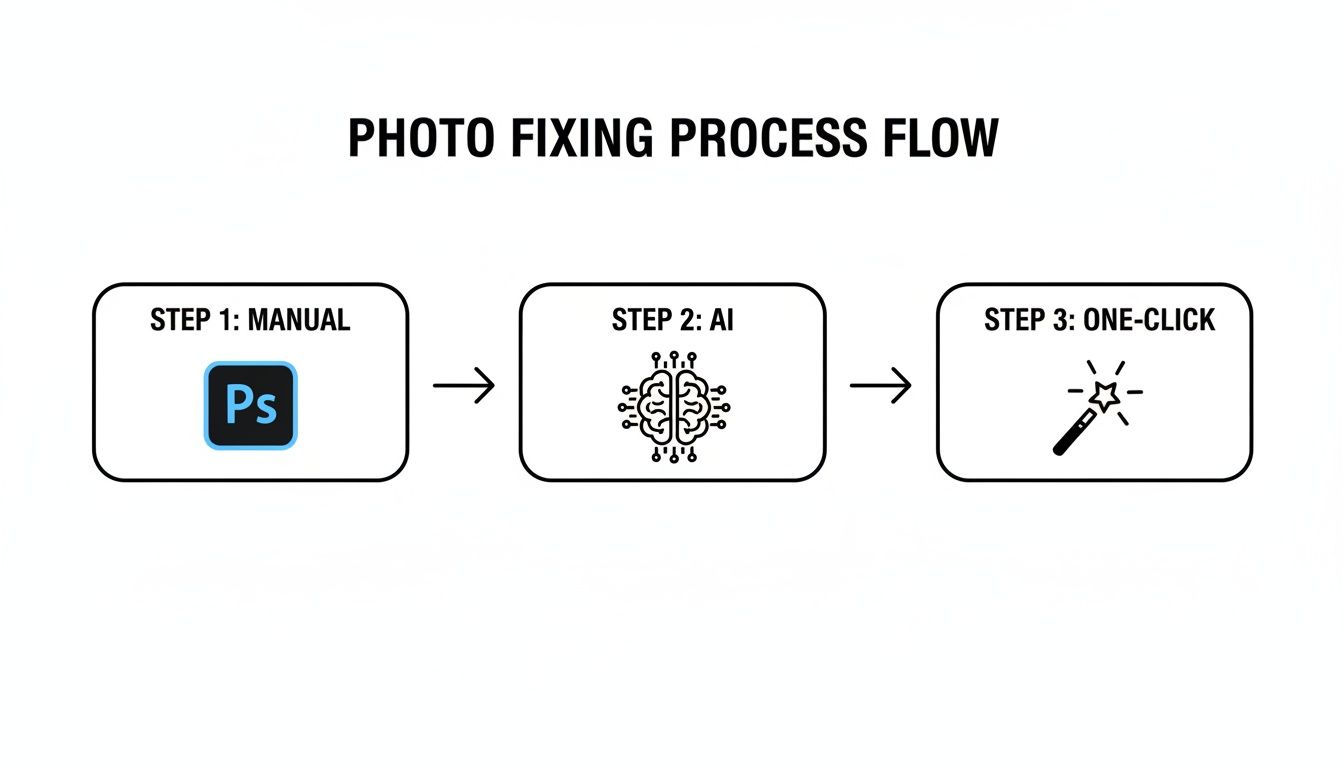
As you can see, we've gone from a time-consuming, skill-heavy task to something that delivers near-instant results.
The One-Click Transformation
Once your image is uploaded, the real magic happens. With just a single click, an AI-powered tool can perform several complex tasks at once, totally transforming the photo in seconds.
- Intelligent Enhancement: The AI algorithm scans the image, finds the pixelated areas, and intelligently rebuilds the lost details. It sharpens the edges of the necklace and clarifies the tiny chain links, all without adding that weird, artificial "halo" effect you sometimes get with manual sharpening.
- Automatic Background Removal: At the same time, the system identifies the necklace as the main subject and cleanly snips it out from that messy desk background. It handles the tricky curves and small gaps in the chain far more accurately than you could with a mouse.
- Lighting and Color Correction: The AI also fixes the lighting and color. That dull, yellowish tint from the lamp in your room? Gone. The silver now looks bright, shiny, and true-to-life.
This whole sequence is completely automated. No messing with sliders, no fiddling with layers. If you're interested in the nuts and bolts of these techniques, our guide on product photo retouching goes into much more detail.
Creating a Marketplace-Ready Final Image
Now that the necklace is sharp, clean, and perfectly lit, the last step is to give it a proper background. Most e-commerce platforms like Amazon and Shopify insist on a pure white or neutral background to keep their marketplaces looking clean and consistent.
With an automated tool, you can instantly place your newly enhanced product on a compliant background, ready for upload.
The result is a polished, high-resolution image that looks like it came straight from a professional photo shoot. What once would have taken hours of tedious work in Photoshop can now be done in less than a minute. This kind of workflow lets any seller create incredible visuals that build customer trust and, ultimately, drive more sales.
From a blurry snapshot to a perfect product shot, the entire process is built for speed and quality, ensuring your products always look their best.
Knowing When to Fix an Image vs. When to Reshoot
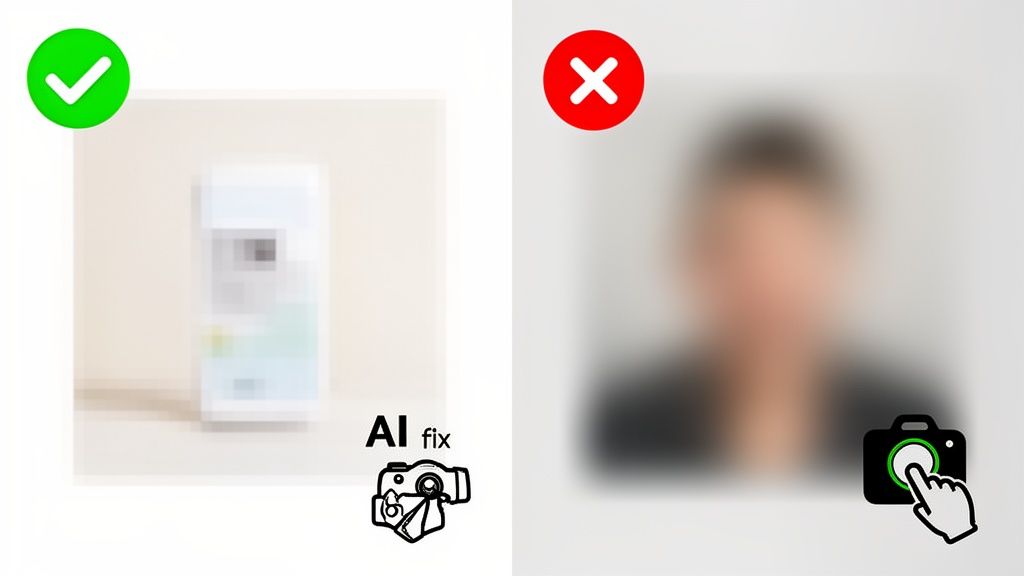
AI enhancement tools are getting scarily good, but they aren’t magic. I've seen people spend hours trying to salvage a hopelessly blurry photo when a quick reshoot would have saved them a massive headache. There’s a crucial point where trying to fix a pixelated picture is a lost cause, and you just have to grab the camera again.
Learning to spot this "point of no return" is a skill that will save you a ton of frustration and, more importantly, ensure your final product images look professional.
So, what's the deciding factor? It all comes down to one question: what essential information has the pixelation completely wiped out? AI is fantastic at sharpening up details that are just a bit soft or fuzzy, but it can't create data out of thin air. If the fundamental shape of your product is just a blocky mess, the AI has nothing to work with.
The Salvageability Checklist
Before you dive into any software, run through this quick mental checklist. If you find yourself nodding "yes" to any of these, trust me, a reshoot is the way to go.
- Is the subject a total blur? We’re not talking about a soft focus that can be sharpened up. I mean fundamentally out of focus, where the core lines and edges of the product are just gone.
- Are key details totally gone? Imagine you're selling a watch. Can you even make out the hands on the dial? For a piece of jewelry, is the clasp just a smudge? If those defining features are indistinguishable, no software can realistically bring them back.
- Is the original file minuscule? If you're starting with a tiny thumbnail, something under 200×200 pixels, even the best AI upscaler is basically guessing. You’ll likely end up with something that looks waxy, weird, and artificial.
Here's my rule of thumb: If you can't tell what the product is without knowing beforehand, the photo is a lost cause. You're aiming for enhancement, not digital archaeology.
When to Go Ahead with the Fix
On the flip side, you're in a great spot to fix a pixelated picture if the problems are more moderate. That photo that looked perfectly fine on your phone but turned into a blocky mess on a big monitor? That's a prime candidate for AI repair.
Images with mild compression artifacts (those weird squares you sometimes see) or a slight motion blur also clean up remarkably well.
The key is that the essential data—the shapes, colors, and basic textures—is still there, even if it's degraded. This gives the AI a solid foundation to work from, allowing it to restore that crispness you need for your product listings. If you're curious about what the pros can achieve, looking into different photo editing services for ecommerce can give you a good benchmark.
At the end of the day, this is all about being efficient. Wasting an hour trying to rescue a photographic disaster is time you could have spent reshooting it correctly in ten minutes. Learning to tell the difference is a vital skill for any serious e-commerce seller.
Common Questions We Hear About Fixing Images
Diving into image editing can feel a little overwhelming, especially when you're just trying to get your product photos to look professional. When it comes to fixing a pixelated picture, a few questions pop up time and time again. Let's get you some clear, practical answers so you can solve these problems and move on.
Can You Really Fix a Pixelated Picture Without Making It Look Worse?
Yes, you absolutely can, but you have to use the right tools. Older sharpening filters were a bit of a blunt instrument—they often just created harsh, artificial-looking edges. Modern AI enhancers are much smarter. They actually analyze the image and generate new, clean pixels to fill in the missing information.
For a photo that's just moderately pixelated, this process can feel like magic. The AI rebuilds the lost detail, giving you a result that looks genuinely sharp and natural, not just "sharpened." It's a massive improvement over the old ways.
What’s the Best File Format to Avoid Pixelation in the First Place?
If you can, always shoot in a RAW format. It captures the most data, giving you maximum flexibility for editing. When you're ready to save the final image for your website or marketplace listing, a high-quality JPEG is usually your best bet. Saving it at 80-90% quality strikes the perfect balance between a sharp image and a small file size that won't slow down your page.
The one exception is when you need a transparent background for things like logos or product shots on a custom-colored backdrop. For that, PNG-24 is the way to go.
Here’s a pro tip: Avoid re-saving a JPEG over and over. Each time you save it, the image gets compressed again and loses a little more detail. It’s like making a photocopy of a photocopy—it just gets fuzzier with each copy. Always work from your highest-quality original and only export the final JPEG once.
How Much Should I Expect to Pay for an AI Photo Editor?
The cost really runs the gamut, from completely free tools to monthly subscriptions for more advanced features. The good news is that many of the best online AI editors give you a free trial or a handful of free credits. This is perfect for testing the waters and seeing how it works on your own product photos before you spend a dime.
Paid plans are generally quite affordable. When you think about the hours you save compared to manual editing in Photoshop, or the cost of hiring a retoucher, it's a small investment. More importantly, it can save you from losing sales due to grainy, unprofessional images.
Ready to stop wrestling with blurry images and start creating stunning, sales-driving product photos in seconds? ProdShot uses powerful AI to automatically fix pixelated pictures, remove backgrounds, and perfect lighting with a single click. Try it for free and see the difference it makes for your online store!