
When your product photo looks blocky, jagged, or just plain blurry, you're dealing with pixelation. It's that frustrating moment when the tiny squares of color that make up a digital image—the pixels—become large enough to see with the naked eye.
This usually happens for a few common reasons:
- Low Resolution: The most frequent culprit. You have a small image (like a thumbnail) and try to blow it up for a product page or banner. The software has to guess how to fill in the missing information, and the result is a chunky, distorted mess.
- Too Much Compression: File formats like JPEG are great for keeping file sizes small, but they do it by throwing away some image data. If you save the same JPEG over and over, especially with high compression settings, you're slowly chipping away at its quality, leading to fuzzy artifacts and visible pixels.
- The Wrong Camera Settings: Starting with a low-quality image is a recipe for disaster. If your camera is set to capture small or low-quality files, you're not giving yourself enough data to work with for editing or enlarging later on.
At its heart, the problem is a lack of information. Each pixel is just a single block of color. When you try to stretch a low-res image, you're just making those blocks bigger.
Why Clear Images Are Money in the Bank
Fixing those blocky photos isn't just about making things look pretty; it directly impacts your bottom line. In e-commerce, a crisp, clear image signals quality and trustworthiness, while a pixelated one screams unprofessional.
The financial proof is out there. In fields like online real estate, where visuals are everything, high-quality images have been shown to boost annual rental revenue by an average of $2,348 per listing. Why? Because better images grab attention and build a customer's confidence. You can see more on how clear images drive revenue at letsenhance.io.
So, what's the modern fix? It's not about just sharpening the edges anymore. Today, it's all about AI.
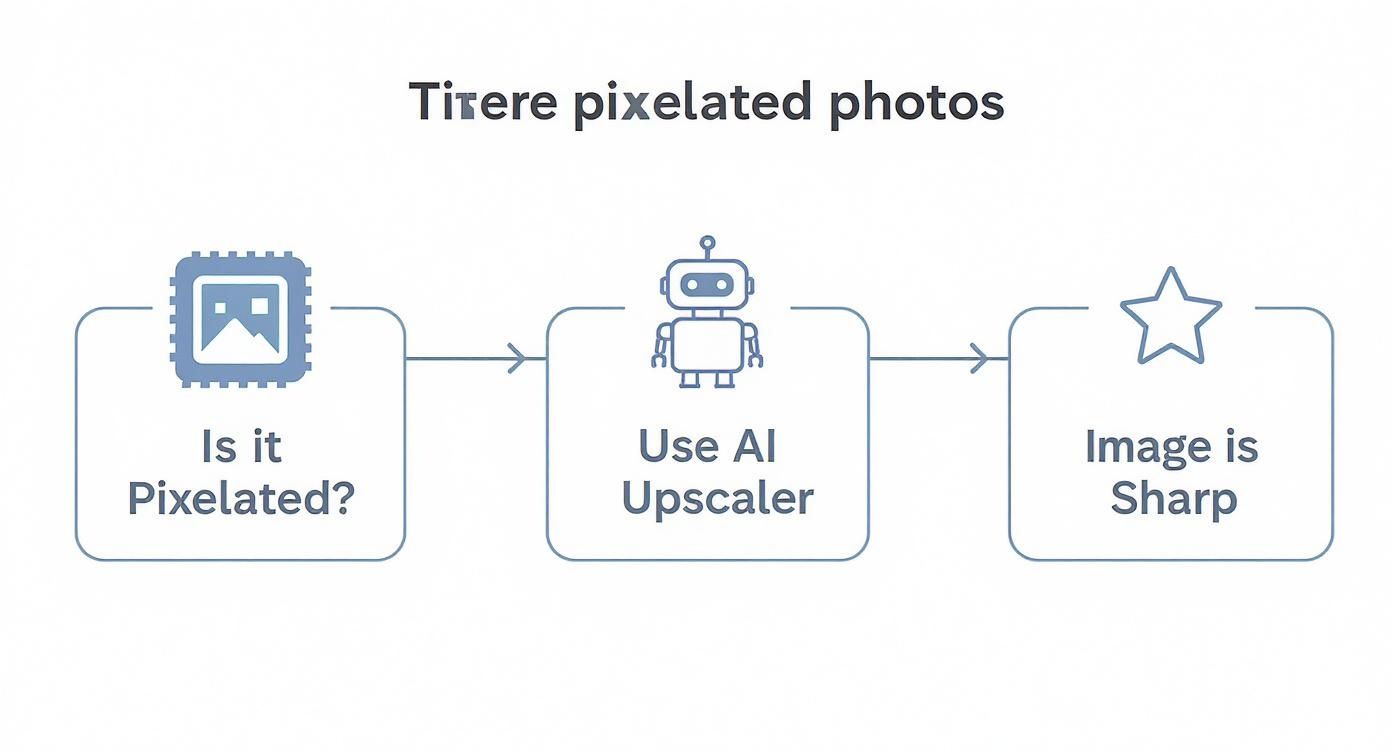
This workflow shows the new standard. Instead of old-school tricks that often made things worse, the go-to solution is now an AI upscaler. These tools intelligently rebuild the missing details in your photo, creating a genuinely clearer image.
The Key Takeaway: Pixelation is a data problem. To fix it, you need to intelligently add back the missing detail. Old methods just sharpened the existing pixels, which could make an image look harsh and unnatural. Modern AI actually reconstructs the image for a clean finish.
To make it even clearer, here's a quick cheat sheet for diagnosing and fixing your photos.
Common Pixelation Causes and Their Best Fixes
This table gives you a quick snapshot of why your photos look pixelated and points you to the most effective solution covered in this guide.
| Cause of Pixelation | What It Looks Like | Primary Solution |
|---|---|---|
| Low Original Resolution | The whole image is blocky or blurry when enlarged. | AI Upscaling to increase pixel count and add detail. |
| Aggressive Compression | "Artifacts" or fuzzy noise, especially around edges. | Noise Reduction followed by light sharpening. |
| Incorrect Camera Settings | The image lacks fine detail and sharpness from the start. | AI Upscaling combined with Sharpening to recover detail. |
| Enlarging a Small Crop | Only one part of the image becomes pixelated after cropping. | AI Upscaling on the final cropped image. |
Think of this as your diagnostic tool. By matching what you see in your image to the cause, you can jump straight to the fix that will give you the best results.
Using AI Tools for a One-Click Fix
Let's be honest, manual editing can be a real grind, especially when you need to fix a pixelated photo now. This is where modern AI-powered tools come in. They offer a nearly instant fix, taking your blurry, blocky images and turning them into sharp, professional assets with just a click or two.
These platforms aren't just applying a basic sharpening filter. They're designed to do the heavy lifting by intelligently reconstructing your photo from the ground up.
At their core, many of these tools use some pretty sophisticated algorithms, sometimes even leaning on concepts like Generative Adversarial Networks (GANs). In simple terms, one part of the AI has been trained on millions of high-quality images, so it knows what a "good" photo is supposed to look like. When you upload your pixelated mess, another part of the AI tries to fix it, while the first part judges the result. This back-and-forth pushes the AI to create a remarkably realistic and detailed image.
This process allows the software to do more than just make an image bigger; it genuinely adds plausible detail, smooths out digital noise, and can even enhance specific features like text or faces with impressive accuracy.
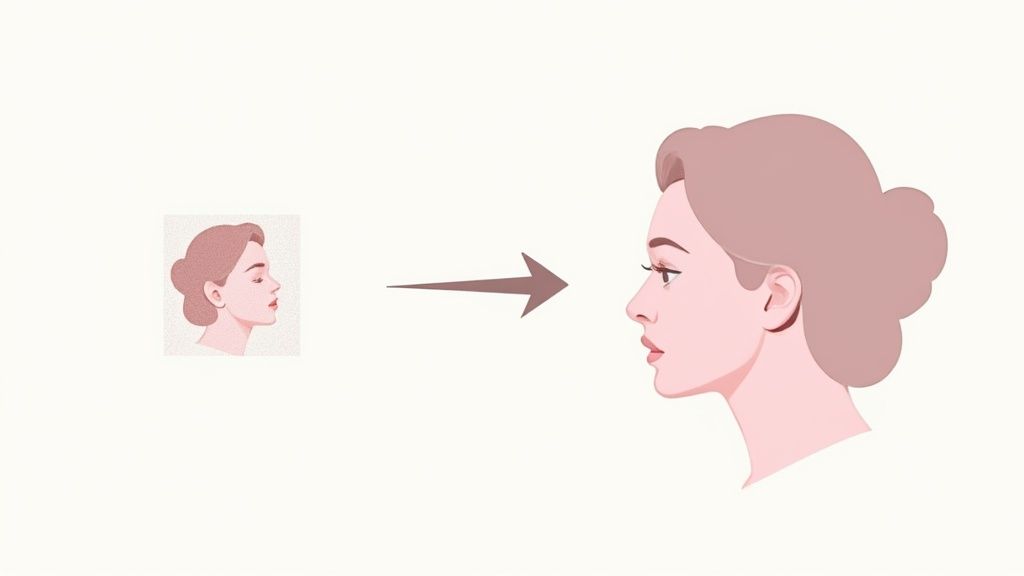
This kind of interface is pretty standard. You get a clear before-and-after view, showing the dramatic improvement in clarity and detail. The best tools automatically detect what's in the photo and apply targeted sharpening and noise reduction, giving you a live preview of the final result.
How AI Photo Enhancers Work Their Magic
The real strength of these tools is their ability to understand the context of your image. Instead of just slapping a uniform sharpening effect over everything—which often creates those ugly halos and artifacts—the AI identifies different elements. It knows the difference between a product's fabric texture, a logo's clean lines, and a soft-focus background, applying tailored adjustments to each part.
This intelligent approach is what makes AI so effective for fixing pixelated photos. And it’s not just a niche technology; it's driving a huge market. The global photograph restoration service market, which includes these AI services, was valued at around USD 799.2 million in 2024. That growth shows just how much demand there is for automated solutions that deliver pro-level results without the hassle.
Top AI Tools for Fixing Pixelated Photos
While there are a ton of options out there, a few really stand out for their reliability and ease of use. These are perfect for e-commerce sellers, marketers, or anyone who just needs a quick, high-quality fix.
- Topaz Photo AI: A seriously powerful desktop app that bundles upscaling, denoising, and sharpening into one automated workflow. It’s fantastic at recovering detail in really poor-quality images and still gives you fine-grained control if you want to tweak things yourself.
- Fotor: A great online tool known for its super user-friendly interface and "1-Tap Enhance" feature. It’s a brilliant option for quick adjustments on the fly without having to download any software.
- Remini: This one got famous for restoring old family photos, but its AI is incredibly good at clarifying faces and enhancing details in just about any picture. The mobile app makes it a breeze to fix photos from anywhere.
If you're curious about what else is possible, it's worth exploring the broader capabilities of AI image generation and enhancement tools.
A Practical Workflow Example
Imagine you've got a small, slightly blurry photo of a new handbag for your Shopify store. The resolution is way too low for your main product page, and trying to enlarge it in a standard editor just makes it look worse.
With an AI tool, the whole process is dead simple:
- Upload Your Image: Just drag and drop the pixelated handbag photo into the tool.
- Choose Your Setting: Most tools will suggest settings automatically. You might choose to upscale the image by 2x or 4x and pick an enhancement style like "Standard" or "High-Fidelity."
- Preview and Download: The AI works its magic in seconds. You'll get a side-by-side comparison of your blocky original next to the newly sharp, detailed version. If you like what you see, just download the high-resolution file.
Pro Tip: Always start with the best quality version of the image you have, even if it seems small. The more original data you give the AI to work with, the more accurate and impressive the final result will be.
Ultimately, these tools are for more than just fixing old mistakes; they're becoming essential for creating professional visuals from the start. For businesses, this means generating incredible product shots is easier than ever. In fact, our guide on using an AI product photo generator dives into how this tech can transform your entire visual strategy, from repairing old photos to creating brand new ones from scratch.
Manual Fixes with Professional Desktop Software
While one-click AI tools are great for a quick fix, sometimes you need the precision of a surgeon. For those moments when you want total creative control, nothing beats rolling up your sleeves with professional desktop software like Adobe Photoshop or the excellent open-source alternative, GIMP.
This is the hands-on approach. You’re not just a passenger here; you’re the pilot, deciding the exact amount of sharpening, the type of noise reduction, and how the image gets rebuilt when you enlarge it. This level of control is absolutely critical for maintaining brand consistency and hitting a specific look that an automated tool might miss.
This hands-on method is more relevant than ever. The demand for high-quality image restoration is booming, with the global market projected to grow at a CAGR of 9.8% from 2023 to 2032. While AI is a huge part of that, the need for a skilled human touch on critical images remains a cornerstone of the industry. You can dig into the data behind this trend over at dataintelo.com.
Mastering the Art of Sharpening
When a photo looks soft, the first instinct is to crank up the sharpening. But this is a classic case of "less is more." Overdo it, and you’ll get ugly halos and digital artifacts that make the image look even worse. The real goal is to enhance detail, not create new problems.
The Unsharp Mask filter is your best friend here. Don't let the name fool you; it's all about sharpening. It works by creating a subtle contrast boost along the edges in your photo, which your eyes interpret as a sharper image.
Here’s how to use it without going overboard:
- Amount: This slider controls the sharpening intensity. I always start low, somewhere around 50-75%, and inch it up while keeping a close eye on the preview.
- Radius: This determines how far out from an edge the sharpening effect spreads. For product shots, keep this tiny—think 0.5 to 1.5 pixels. Anything more, and you risk a chunky, over-processed look.
- Threshold: This is the secret weapon. It tells the filter to ignore areas with low contrast. Setting this between 2 and 10 is a game-changer, as it prevents smooth surfaces from getting grainy.
Expert Tip: Never, ever work directly on your original image layer. Always duplicate the layer or convert it to a Smart Object in Photoshop first. This non-destructive workflow is a lifesaver, letting you go back and tweak the filter settings anytime you want.
Intelligent Upscaling with Resampling Methods
So, you need to make a small, pixelated photo bigger. When you do this, the software has to invent new pixels out of thin air. The method it uses for this—called resampling—makes a huge difference in the final quality. Just hitting "OK" with the default setting is often a recipe for a soft, blurry mess.
Inside Photoshop’s Image Size menu, you have a few options. For making images larger, these two are your go-tos:
- Bicubic Smoother: This is a fantastic all-around choice. It’s specifically designed for enlargements and does a great job of producing a smooth result without jagged edges.
- Preserve Details 2.0: This is the heavy hitter. It’s a more advanced, AI-powered algorithm that’s brilliant at keeping edges crisp and textures intact when you're dramatically increasing an image’s size. It even has a handy "Reduce Noise" slider to clean up any grain it might introduce.
Professional editing software gives you an incredible amount of control with sliders for clarity, texture, and sharpness, as you can see here.
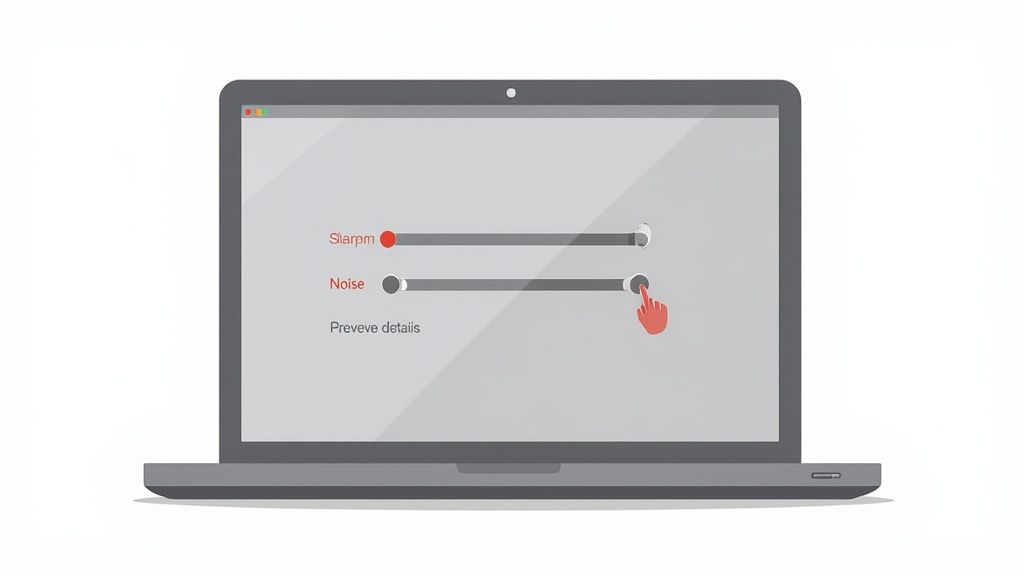
This lets you target specific problems caused by pixelation without applying a blanket, one-size-fits-all fix.
Leveraging the Camera Raw Filter
One of my favorite tools hiding inside Photoshop is the Adobe Camera Raw (ACR) filter. The best part? You can use it on any image, not just raw files. ACR's sliders are incredibly powerful for making subtle, high-impact adjustments.
For pixelated photos, two sliders are absolute magic:
- Texture: This slider targets medium-sized details. It’s perfect for bringing out the weave in a fabric or the grain in a wooden product without sharpening everything and introducing noise.
- Clarity: This adds a nice punch to the mid-tone contrast, which makes an image feel sharper and more defined. Just be careful—a little goes a long way. Too much clarity can create a gritty, unnatural look.
For any business that depends on flawless product images, mastering these manual techniques is a huge asset. But let's be realistic—it takes time.
If you find yourself sinking hours into editing, it might be time to look into professional product photo retouching services. You get the precision of a manual edit with the efficiency of an expert team, freeing you up to focus on growing your business.
Fixing Pixelated Photos on Your Phone
You don't need to be chained to a desk to save a pixelated image. Your smartphone is a surprisingly capable editing suite, and with the right apps, you can take a blurry mess and turn it into a sharp, professional-looking product shot in minutes.
This is a lifesaver when you're on the go, need to touch up a quick product shot, or want to polish an image right before posting it to social media. The trick is knowing which apps to reach for. While tons of apps have a basic sharpen filter, the best ones use smarter algorithms to bring back detail without that crunchy, over-processed look.

A Quick Workflow with Snapseed
Google's Snapseed is a must-have. It’s free, but it packs the kind of power you’d normally have to pay for. When you’re dealing with a pixelated photo, the "Details" tool is your best friend.
Instead of a single, clumsy sharpening slider, Snapseed splits the work into two much more useful options:
- Structure: This is for enhancing texture and mid-range details. It's fantastic for bringing out the weave in a fabric or the finish on a product without making fine lines look weird. Think of it as adding depth and definition.
- Sharpening: This slider targets the fine edges in your photo. Be gentle with this one. You’re aiming for crisp, clean lines—not harsh, glowing halos around your product.
Just open your image in Snapseed and go to Tools > Details. I always start with the Structure slider, nudging it to the right until the texture pops. Then, I’ll add just a touch of Sharpening to finish it off. This two-step approach gives you a much more natural and refined result than a one-size-fits-all filter.
One-Tap AI Magic with Remini
Look, sometimes you don’t have time to mess with sliders. You just need a dramatic fix, fast. This is where AI-powered apps like Remini are absolute game-changers. It got famous for restoring old, grainy family photos, and that same tech works wonders on pixelated product images.
Remini’s core strength is its one-tap enhancement. You upload your photo, press a button, and the AI does everything else. It’s not just sharpening; it’s actually analyzing and reconstructing details, cleaning up noise, and clarifying the whole image. This is a huge help when the source photo is really low quality. The results can be jaw-dropping for something that takes only a few seconds.
A common mistake I see people make when editing on their phone is deliberately underexposing the photo to avoid grain. But noise loves to hide in the shadows. A photo shot at a slightly higher ISO that's properly exposed will almost always clean up better than a dark, low-ISO shot you have to crank the brightness on later.
Pro-Level Control with Lightroom Mobile
For those who crave maximum control, Adobe Lightroom Mobile is the answer. It’s a little slice of the professional desktop experience right on your phone, and its tools for fixing pixelation are incredibly precise.
Head over to the "Detail" panel. In there, you'll find a few sliders that let you perform surgical edits:
- Sharpening: This works like you'd expect, increasing the contrast between edges.
- Radius: This controls how thick the sharpening effect is. My advice? Keep this low, around 1.0, to avoid that chunky, overdone look.
- Detail: This slider focuses the sharpening on the finer textures in the image.
- Masking: This is the secret weapon. If you hold your finger on this slider and drag it right, the screen will show you exactly where the sharpening is being applied (the sharpened areas turn white). This lets you target only the edges of your product while leaving smooth backgrounds untouched, which is key to avoiding extra noise.
That Masking tool is what separates a decent edit from a truly professional one. You can be incredibly specific, fixing only the parts that need it.
The best part of mobile editing is how immediate it is. You can snap a picture, notice it’s a little soft, and have a corrected version ready for your online store or Instagram before you even get back to your computer.
Of course. Here is the rewritten section, crafted to sound like it was written by an experienced human expert, following all your specific requirements.
How to Prevent Pixelation from Happening in the First Place
While all the sharpening and upscaling tricks are great in a pinch, the absolute best way to deal with a pixelated photo is to make sure it never happens at all. Trust me, adopting a few good habits before you even press the shutter button will save you hours of frustration down the road.
Think of it this way: trying to fix a badly pixelated photo is like trying to un-bake a cake. You can try to patch it up, but it will never be as good as one made with the right ingredients from the start. Prevention is all about starting with a great recipe.
Start with the Highest Quality Possible
The vast majority of pixelation nightmares begin with one simple problem: not enough data. When you have a small, low-resolution image, any attempt to make it bigger forces the software to guess what should fill the gaps. That guesswork is what creates those ugly, blocky pixels.
The fix is surprisingly simple. Before you start shooting, dive into your camera or smartphone settings. Hunt down the image quality and size options and crank them up to the absolute maximum. On a DSLR, this might mean shooting in RAW format. On a phone, it means selecting the largest JPEG size.
A high-resolution original gives you breathing room. You can crop, resize, and edit to your heart's content without a pixelated mess. It's always, always better to have too much detail than not enough.
Understand Your File Formats
Not all image files are created equal, and the format you choose can make or break your photo's quality, especially after a few edits. You’ll mostly run into two types: JPEG and PNG.
- JPEG (Joint Photographic Experts Group): This is a lossy format. To keep file sizes small, it compresses the image by permanently throwing away some data. Here's the kicker: every single time you save a JPEG, it gets compressed again, and you lose a little more quality. It's a one-way street to a crunchy-looking image.
- PNG (Portable Network Graphics): This is a lossless format. It uses clever compression that doesn't discard any data. You can save a PNG a hundred times, and it will look just as good as the original. The only trade-off is that PNG files are usually larger.
My Personal Workflow: I always shoot in the highest quality I can get (RAW, if possible). For editing, I save my work-in-progress files in a lossless format like TIFF or PSD. I only export a compressed JPEG as the very last step when I need the final version for a website or marketplace.
This method keeps my master image file completely pristine. The quality-killing compression only happens once, right at the end.
Stop Abusing Your Images
Once you have that beautiful, high-quality photo, you have to treat it right. A few simple mistakes can completely undo all your hard work. Here are the golden rules I live by to keep my product shots looking sharp.
Never Enlarge a Small Image
This is the cardinal sin of image editing and the #1 cause of pixelation. You simply cannot take a tiny thumbnail and stretch it to fit a large website banner. It will always look like a blurry, blocky disaster.
You have to start with an original image that is at least as large as the final size you need it to be. If you find yourself constantly needing to resize photos for different platforms without wrecking them, a dedicated tool is a lifesaver. You can see how an online image resizer is designed to preserve detail during this process.
Always Edit a Copy
I can't stress this enough: never edit your original image file. The first thing you should do is duplicate the file and work on the copy. This is your safety net. If you push the sharpening too far or mess up the colors, you can always go back to the untouched original and start over without any drama.
Be Mindful of Underexposure
Noise—that grainy texture you sometimes see—absolutely loves to hide in the dark, shadowy parts of a photo. If you take a picture that's too dark (underexposed) and then try to brighten it up in post-production, you’re basically putting a spotlight on all that hidden grain, which can often look a lot like pixelation.
It's much better to get the exposure right in the camera, even if it means bumping up the ISO a little. A properly exposed photo with a touch of natural ISO noise will look infinitely cleaner than a dark photo that's been artificially brightened into a grainy mess.
Know Your Marketplace Requirements
Uploading an image that's too small for an e-commerce platform is a guaranteed way to get a pixelated result. The platform will automatically stretch your photo to fit its template, and the outcome is rarely pretty.
To avoid this, always check the recommended image dimensions for any marketplace you sell on. Shooting to these specs from the beginning saves you from any nasty surprises later.
Here's a quick reference to make sure your product photos meet the minimum resolution for major e-commerce sites, helping you avoid pixelation on upload.
Image Resolution for Popular Online Platforms
| Platform | Minimum Recommended Resolution (pixels) | Maximum File Size |
|---|---|---|
| Shopify | 2048 x 2048 for square product photos | 20 MB |
| Amazon | At least 1000 pixels on the longest side | 10 MB |
| Etsy | At least 2000 pixels on the shortest side | 10 MB |
| eBay | At least 500 pixels on the longest side | 12 MB |
| WooCommerce | 800 x 800 by default (can be customized) | Varies by host |
| 1080 x 1080 for square posts | 30 MB |
Having this table handy is a great way to double-check your work before you export your final images. A little bit of prep goes a long way in making sure your products look fantastic everywhere they appear.
Common Questions About Fixing Pixelated Photos
Even with the best tools on your side, you probably still have some nagging questions about what’s actually possible. Let's clear up a few of the most common things people ask when they're trying to rescue a fuzzy product photo.
Can a Really Blurry Photo Be Perfectly Restored?
This is the big one, and I'll give it to you straight: not perfectly. Modern AI tools are borderline magical, but they can't create data that was never captured in the first place.
When an AI upscaler looks at a tiny, super low-resolution photo, it has very little real information to work with. It uses its training from millions of other high-quality images to make incredibly smart guesses about what the missing details should look like. The result is often a massive improvement, turning a completely unusable image into something sharp and clear. But it's a reconstruction, not a true restoration.
Key Takeaway: Think of AI as a brilliant artist, not a time machine. It can paint a stunningly realistic version of what was lost, but it can't bring back the original, uncaptured detail pixel for pixel.
What Is the Difference Between Resolution and DPI?
This one trips a lot of people up, especially when they’re prepping images for both their website and maybe some print materials down the line. They’re related, but they do very different jobs.
- Resolution is all about the screen. It’s the total number of pixels that make up your image, like 1920 x 1080. More pixels mean more digital detail. This is what counts for how your photo looks on a phone, a laptop, or a TV.
- DPI (Dots Per Inch) is all about printing. It tells a physical printer how many tiny dots of ink to squeeze into one inch of paper. You need a high-resolution image to be able to print at a high DPI (usually 300 DPI for good quality) so the final product on paper looks sharp, not blocky.
Bottom line? Focus on getting a high resolution for your digital files. That will give you the flexibility to print at a high DPI whenever you need to.
Should I Use an AI Tool or Professional Software?
Deciding between a one-click AI tool and a beast like Photoshop really boils down to one thing: speed versus control. There’s no right answer here; it’s all about what you need to get done.
AI tools are built for speed and convenience. They’re perfect for busy entrepreneurs who have a dozen product shots to fix before lunch. You can get surprisingly fantastic results with almost zero effort. If you need a great-looking photo in under a minute, AI is your best friend.
On the other hand, professional software like Photoshop gives you total control. You can zoom in and make tiny, specific adjustments that an automated system might miss. This is the path for pros who need to match an exact brand look or fix a really tricky image that needs a human eye.
So, if your main goal is getting it done fast, go with AI. If your priority is tweaking every last detail, stick with the professional desktop software.
Ready to skip the manual work and get stunning, professional product photos in seconds? ProdShot uses advanced AI to automatically enhance your images, remove backgrounds, and create conversion-optimized visuals perfect for any marketplace. Try ProdShot for free and transform your product photos today!