
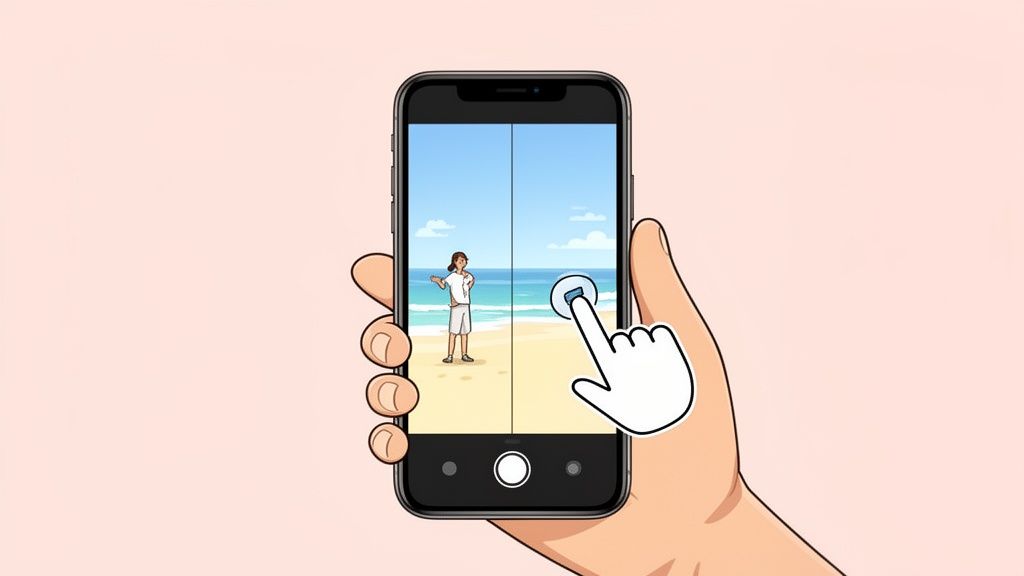
Let's be honest, the built-in Photos app on your iPhone is fantastic for a lot of things—quick tweaks, cropping, and applying filters. But when you need to surgically remove a person from a photo and make it look like they were never there, you’re going to need a more specialized tool. The native app just doesn't have the sophisticated features required to seamlessly rebuild the background.
For a clean, professional result, you'll want to turn to specialized apps like TouchRetouch, Snapseed, or even AI-powered services like ProdShot.
Your Guide to Flawless Photos on Your iPhone

Ever captured a stunning travel photo, only to have it ruined by a tourist wandering into the frame? Or maybe you're an e-commerce seller trying to get a clean shot of your product, but your own reflection or a stray hand keeps getting in the way. It’s a frustratingly common problem.
Forget about firing up complex desktop software. We’re going to focus on powerful, accessible solutions that get the job done right on your iPhone.
The reality is, we live in a world of mobile photography. Smartphones now account for a staggering 92.5% of all pictures taken globally. This massive shift means the demand for powerful, on-the-go editing tools has never been higher. If you’re curious, you can read more about the rise of mobile photography statistics and see the data for yourself.
Why Mobile Editing Matters More Than Ever
This isn't just a trend; it's a fundamental change in how we create and share visual content. It impacts everyone, but for online sellers on platforms like Shopify, Amazon, and Etsy, the need is urgent. They need to turn everyday smartphone snaps into professional, eye-catching product images—without investing in expensive gear or spending hours editing.
This guide is designed to cut through the clutter and give you practical, real-world methods for removing people from your photos. We’ll walk through:
- The best third-party apps for those who want manual control.
- How AI tools like ProdShot can automate the entire process in seconds.
- How to choose the right approach for your specific needs, whether it's a quick fix for Instagram or a polished image for your online store.
The real goal isn't just to erase someone. It's about flawlessly reconstructing the background so the final image looks like it was shot perfectly from the start. That's the professional finish we're after, and this guide will show you exactly how to achieve it.
To help you decide where to start, here's a quick look at the different approaches.
Comparing Methods for Removing People From Photos
Deciding on the right tool depends on your specific needs, how much time you have, and the quality you're aiming for. This table breaks down the main options to help you choose the best fit.
| Method | Best For | Ease of Use | Cost |
|---|---|---|---|
| Manual Editor Apps | Photographers who want precise control over complex backgrounds. | Moderate to High | Free to ~$5 (one-time) |
| AI-Powered Services | E-commerce sellers & anyone needing fast, consistent, high-quality results. | Very Easy | Subscription or pay-per-image |
| iOS Markup (Simple Cases) | Very small, simple objects on a non-complex background. | Easy | Free (built-in) |
Each method has its place. For a quick, non-critical edit, the built-in tools might suffice. For detailed work, a manual editor gives you the power. But for speed and professional consistency, especially for business, AI is often the most efficient path.
Now, let's dive into the step-by-step methods to find the perfect solution for you.
Using Editing Apps for Precision Removal
Sometimes, the built-in iPhone tools just don't cut it. For a truly clean, believable result, you need to call in the specialists—dedicated editing apps. These apps are built from the ground up for complex tasks like removing people, giving you the kind of surgical precision you just can't get otherwise. Instead of a one-size-fits-all button, you get specialized brushes, cloning tools, and smart AI features that can handle even the trickiest backgrounds.
The demand for these powerhouse apps is huge, which makes sense when you consider how central the iPhone has become to photography. In fact, a staggering 86% of photographers now use iPhones for their everyday shots. This has created a super-competitive app market, with tools like Canva, Remini, and PicsArt consistently topping the charts. The takeaway here is simple: a high-quality solution for getting someone out of your photo is just a download away.
Choosing the Right Tool for the Job
Here's the thing: not all removal tools are created equal. The best app for your photo really depends on what’s going on in the background. Removing a person standing against a simple brick wall is a completely different challenge than erasing someone from a complex, organic scene like a sandy beach or a field of grass.
- TouchRetouch: This is my go-to for structured backgrounds. Its line removal tool is an absolute lifesaver for photos with buildings, fences, or power lines. It intelligently reconstructs straight and curved lines, something many other apps really botch.
- Snapseed: Google's free editing suite is fantastic for organic textures. The "Healing" tool is brilliant at sampling nearby pixels to create a natural-looking patch, making it perfect for blending people out of skies, water, or dense foliage.
- Adobe Photoshop Fix: For those times you need ultimate control, this app offers more manual tools, like a classic clone stamp. This lets you pick the exact source point to paint from, which is crucial for repairing intricate patterns where an automatic tool would just make a mess.
Pro Tip: Always, always zoom in as far as you can before you start editing. What looks like a seamless fix when you're zoomed out can reveal blurry edges or weird, repetitive patterns up close. Precision work demands a magnified view.
A Practical Walkthrough with TouchRetouch
Let’s run through a common scenario. Imagine you took a great shot of a historic building, but a tourist is standing right in front of a detailed window frame, ruining the composition. This is where TouchRetouch really proves its worth.
You'd start by opening the image and selecting the "Object Removal" tool. Now, instead of just scribbling over the entire person with the generic brush, zoom right in and use the "Line Removal" feature first. Carefully trace the lines of the window frame that are blocked by the person. The app will magically put them back together.
With the structure repaired, you can switch to the standard brush tool to paint over whatever is left of the person. By fixing the structural elements first, you give the app a clean foundation to work from, and the final result is far more realistic. This two-step process—structure, then fill—is a little trick that separates good edits from flawless ones.
For online sellers, getting these details perfect is non-negotiable. Using a dedicated Shopify photo editor can make this kind of cleanup work even more efficient. Mastering these simple, app-specific features is how you learn to remove a person from a photo on your iPhone like a pro.
Leveraging AI for Automated Photo Cleaning
If you’ve ever tried to manually edit someone out of a photo on your iPhone, you know it takes a steady hand and a whole lot of patience. It can be a real struggle, especially with busy or complex backgrounds. While some of the precision apps out there are powerful, AI-powered tools offer a much smarter—and way faster—approach.
We're not just talking about a simple erase function here. These are intelligent systems built to make what used to be a complicated edit feel completely effortless.
Instead of just guessing and copying nearby pixels to fill a space, AI algorithms analyze the entire image. They understand the context—things like patterns, textures, and lighting. The AI then intelligently reconstructs the background where the person used to be, generating brand new pixels that blend in seamlessly. The result is a natural-looking photo, often in just a few seconds.
The core process is simple: you open the image, select the element you want gone, and let the AI do the heavy lifting.

This kind of simple, effective workflow is exactly why AI tools are becoming a go-to for anyone who needs great results without a steep learning curve.
The E-commerce Advantage with AI
For online sellers, this speed and automation is a game-changer.
Let's say you snapped a great shot of your product, but you can see your hand holding it up, or your reflection is staring back from a shiny surface. Editing that out manually for every single photo would take forever. This is where a dedicated tool like ProdShot really shines.
ProdShot was built for exactly this kind of problem. It goes way beyond just removing an object; it gives you a complete workflow for creating images that are ready for any marketplace. You can upload a raw photo, distracting person and all, and the AI will completely transform it.
It can automatically:
- Generate a clean, professional background (like pure white or even a custom scene).
- Fix the lighting and correct shadows to give it that studio-quality feel.
- Optimize the final image so it looks perfect on Shopify, Amazon, or Etsy.
This isn't just about convenience—it's a real strategic advantage. It helps you maintain brand consistency across all your listings and saves you countless hours of tedious work. If you're looking to get the most out of these tools, our guide on using an AI product photo generator has some great tips.
The real magic of AI isn't just about removing what you don't want. It's about creating the perfect image you actually need. It turns a flawed smartphone picture into a polished, conversion-driving asset, all on its own.
Why AI Is Becoming the Standard
The move towards AI in photo editing is more than just a passing trend. It's fundamentally changing how we approach these tasks. With AI acting as an invisible assistant, tools for removing people and objects from photos are becoming more powerful and accessible than ever.
For e-commerce sellers and anyone else managing product photos, this technology closes the gap between amateur shots and professional results. It takes the guesswork and technical skill out of the equation, delivering a clean, polished image every single time. This lets you spend less time fussing with edits and more time actually growing your business.
Troubleshooting Common Editing Problems
Even with the best apps, removing someone from a photo on your iPhone doesn't always nail it on the first go. Sometimes you’re left with a blurry patch, a wonky-looking line, or a weird, repeating pattern where the person used to be. Don't sweat it—these are super common hiccups, and they're totally fixable.
Learning to clean up these little imperfections is what separates a decent edit from a great one. The real goal is to make the final picture look like it was shot that way from the start, with zero evidence of digital trickery.
Fixing Blurry Patches and Smudges
One of the most frequent tell-tale signs of an edit is a soft, smudgy area right where you did the removal. This usually happens when the app's AI gets confused by a complex background like grass, sand, or a patterned rug. Instead of recreating the texture, it just fills the space with a blur.
The fix? Go back in, but with more precision.
- Shrink your brush size. A smaller brush gives the app a more focused area to analyze and rebuild. Go back over the blurry spot with a brush that’s just a tad bigger than the smudge itself.
- Use a clone or stamp tool. If your app has one (like in Adobe Photoshop Fix), this is your best friend. It lets you copy a sharp, clear part of the background and "paint" it right over the blurry mess, giving you total control.
- Layer your edits. Sometimes, two or three quick, small passes with the healing tool work way better than one big one. This layered approach helps the app build up the texture more naturally.
Correcting Distorted Lines and Patterns
When you remove a person standing in front of something with straight lines—a building, a fence, a brick wall—the app can easily botch the alignment. You end up with bent or broken lines that scream "this has been edited!"
The secret here is to work with the image's structure, not against it. Before you erase the person, focus on rebuilding the background’s natural geometry first.
For example, if someone was blocking a window frame, use a line-specific tool (the one in TouchRetouch is fantastic for this) to reconnect the straight edges of the frame before you remove the rest of the person. By giving the AI a clean, restored canvas to work with, you'll get a far more believable result.
Avoiding the Dreaded Halo Effect
Ever remove someone and notice a faint, glowing outline where they used to be? This "halo effect" often pops up in photos with strong backlighting or high contrast between your subject and the background. The app just struggles to blend the different light levels perfectly.
To get rid of it, zoom in as close as you possibly can. Use a tiny healing brush to gently tap along the glowing edge. You're not removing a big object anymore; you're just doing some delicate pixel-blending. Sample from the darker background right next to the halo and carefully paint over that bright line. It takes a little patience, but this final touch is what makes an edit truly seamless.
Getting Your Edited Photos Ready for E-commerce

Okay, so you’ve successfully removed that distracting person from your photo and the edit looks flawless. Now what? For anyone selling online, this next part is just as critical. A perfect image is completely useless if it’s so large that it slows your website to a crawl.
And let's be real—slow load times kill sales.
This isn't just a "nice-to-have." For sellers on platforms like Shopify, Amazon, or Etsy, getting your images right is non-negotiable. Each marketplace has its own rulebook for things like image dimensions, file size, and format. If you upload a giant, unoptimized photo, you risk it getting rejected, looking blurry, or creating a laggy experience that sends potential customers running.
Choosing the Right File Format
You'll mainly be dealing with two file types: JPEG and PNG. Knowing when to use each one is a simple trick that makes a huge difference in how professional your listings look.
- JPEG (or JPG): This is your go-to for 99% of product photos. JPEGs offer fantastic compression, meaning you get a small file size with excellent visual quality. That’s the secret sauce for fast-loading pages.
- PNG: The only time you should reach for a PNG is when you absolutely need a transparent background. Maybe you've cut out your product to place it on a custom-colored banner. A PNG will keep that background transparent, but the trade-off is a much larger file.
For a standard product shot on a white or solid-colored background, always stick with JPEG. The quality is top-notch, and the smaller file size helps your store load faster. That's a huge factor in keeping shoppers on your site.
Nailing Your Export Settings
When you’re ready to save that final image, don't just hit "export" and call it a day. The settings matter. A lot.
For any image destined for the web, 72 DPI (dots per inch) is the universal standard. When it comes to dimensions, a square format around 2048 x 2048 pixels is a safe bet for most platforms. This gives you enough crisp detail for zoom features without creating a monstrously large file.
Most editing apps also have a quality or compression slider. I've found that a setting between 80-90% is the sweet spot—it dramatically shrinks the file size with virtually no noticeable drop in quality. If you need to hit very specific dimensions, a dedicated online image resizer can get you there with precision.
To help you get it right every time, here’s a quick-reference guide for the big players in e-commerce.
Image Requirements for Top E-commerce Platforms
| Platform | Recommended Dimensions (pixels) | File Size Limit | File Type |
|---|---|---|---|
| Shopify | 2048 x 2048 (for square images) | Up to 20 MB | JPEG, PNG, GIF |
| Amazon | At least 1000 pixels on the longest side | Up to 10 MB | JPEG, TIFF, GIF |
| Etsy | 2000 pixels on the shortest side | Under 1 MB (recommended) | JPEG, PNG, GIF |
Following these guidelines ensures your images look sharp and load quickly, no matter where you're selling.
Of course, if this all feels like a bit of a headache, automated tools like ProdShot are designed to handle all of this for you. It takes out the guesswork by optimizing every image perfectly for your chosen marketplace, giving you a consistent, professional gallery that helps turn casual browsers into loyal customers.
Got Questions? We’ve Got Answers.
When you start digging into photo editing, a bunch of questions always pop up. It doesn't matter if you're a seasoned e-commerce seller trying to clean up product shots or just someone wanting to perfect a great travel photo—you need clear, straightforward answers.
We've pulled together the most common questions we hear about removing people from photos on an iPhone. The goal here is to give you direct, practical advice to get you past any editing roadblocks and on your way to a flawless final image.
Can I Remove Someone From a Photo on an iPhone Without an App?
The short answer is no, not really. Right now, the built-in iOS Photos app doesn’t have a tool that can cleanly remove a person and then intelligently rebuild the background behind them.
Sure, you can crop someone out, but that changes your whole photo. The "Lift Subject from Background" feature is also pretty neat for creating a sticker of a person, but it doesn't actually erase them from the original scene. For a truly clean removal where the background looks untouched, you’ll need a third-party app. Tools like TouchRetouch, Snapseed, or AI-powered services like ProdShot are built for exactly this kind of complex task and give you much better results.
What Is the Best Free App to Remove a Person From a Photo?
Hands down, Snapseed by Google is a fantastic free option that punches way above its weight. Its "Healing" tool is surprisingly powerful and can handle a lot of common removal jobs with ease.
It works best when you’re dealing with less complicated backgrounds—think open skies, a big patch of grass, or a simple wall. While paid apps definitely have more advanced tricks up their sleeves for those super-intricate scenes, Snapseed gives you professional-level power at no cost. If you're looking for a free solution, it's the perfect place to start.
How Do I Make the Background Look Natural After Removal?
Getting that seamless, natural finish is all about the details. You have to work with precision and, most importantly, avoid creating those obvious, repetitive patterns where the person used to be.
Here are a few tips I always follow for a clean blend:
- Zoom way in. Get right up close to the area you're editing. You need to see the pixels to work with them properly.
- Use a small brush. A smaller brush gives you far more control and helps you make much more refined adjustments.
- Sample from different spots. When you’re using a clone or healing tool, don't just pull pixels from one area. Grab them from multiple nearby locations to avoid that "rubber stamp" look where the texture looks obviously copied and pasted.
Pay close attention to the natural lines, shadows, and textures in the original photo. Your goal is to make your edit completely invisible.
The most believable edits are the ones where the new background perfectly mimics the lighting and texture of the original scene. Rushing this part is the #1 reason a photo ends up looking fake.
Are AI Tools Better for Removing People From Complex Backgrounds?
Yes, absolutely. This is where AI really shines. When you're faced with a complex or "busy" background, AI tools are in a league of their own.
Traditional manual tools just copy and paste existing pixels. AI, on the other hand, analyzes the entire image for context. It understands patterns, lighting, shadows, and even perspective to generate a brand-new patch of background that actually makes sense in the empty space.
This is a complete game-changer for tough scenes like a crowded city street, a detailed room, or a photo with intricate patterns. Trying to fix those manually would be incredibly time-consuming and almost impossible to get right. An AI-driven tool will almost always give you a cleaner, more realistic result in a tiny fraction of the time.
Ready to skip the manual work and get marketplace-ready images in seconds? ProdShot uses advanced AI to automatically remove unwanted people or objects and generate stunning, professional product photos. Try it for free and see how easy it is to elevate your product gallery.