
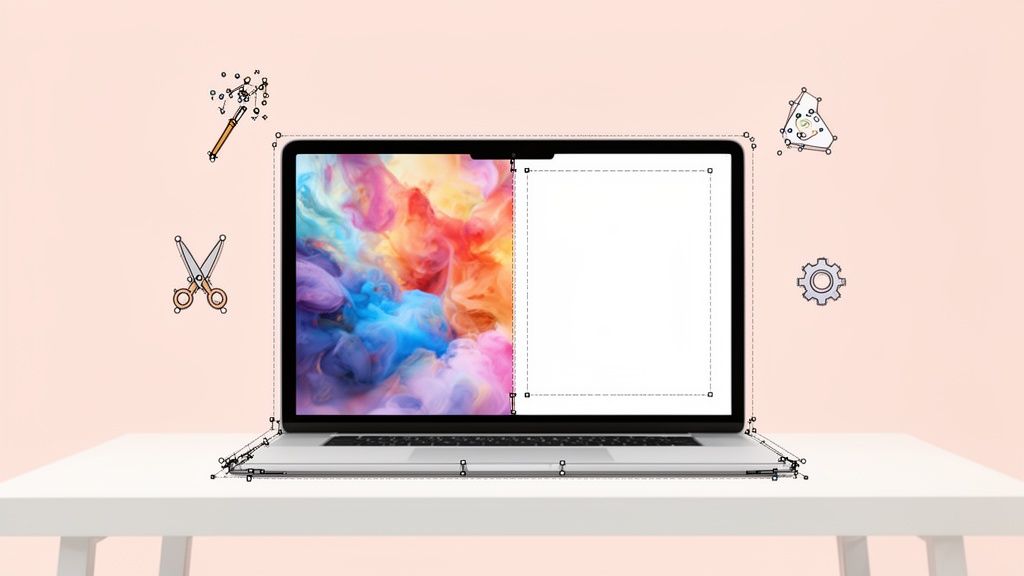
An online image outliner is simply a tool that lifts your product out of its background, giving you a clean, crisp cutout. For anyone selling online, this isn't just some fancy editing trick—it's essential for creating images that build trust, fly past marketplace requirements, and actually drive sales.
A sharp outline makes your product the star of the show. No distractions, just pure product.

Why Clean Product Images Drive E-Commerce Sales
In the crowded world of online retail, your product images do all the initial talking. Before a customer even glances at your description or price, they’re making a snap judgment based on your photos. A clean, professional image screams credibility and quality. A cluttered or sloppy one? It just creates doubt and sends shoppers clicking away.
This is where a good, clean outline makes all the difference. By stripping away distracting backgrounds, you put the spotlight squarely on your product. Shoppers can zoom in on the details, see the textures, and imagine the item in their hands without any visual clutter getting in the way. It’s the digital version of placing a diamond on a black velvet cloth.
The Numbers Don't Lie: Quality Sells
The link between image quality and sales isn't just a gut feeling; the data is overwhelming. We've seen it time and again: shoppers consistently gravitate toward listings with clear, high-resolution photos. In fact, nearly nine out of ten online shoppers say high-quality product images are one of the most important factors when they decide to buy.
The table below breaks down just how much of a difference good images can make.
Image Quality Impact on E-Commerce Success
| Metric | Impact of High-Quality Images |
|---|---|
| Conversion Rate | Can increase by over 90%. Clear visuals reduce uncertainty and build purchase confidence. |
| Customer Trust | Professional images signal a credible and reliable seller, reducing bounce rates. |
| Return Rate | Accurate, detailed photos set clear expectations, leading to fewer returns from unmet expectations. |
| Brand Perception | Consistent, high-quality images create a polished and professional brand identity. |
These metrics show that investing in your visuals isn't just an expense—it's a direct path to better performance across the board.
Here's a number that should get your attention: products with high-resolution images can see a conversion rate jump of up to 94% compared to those with weak visuals. That’s a powerful reminder that investing in your photos directly fuels your sales.
Using an online image outliner is your first, most critical step toward creating those high-converting images.
Building a Brand That Looks the Part
Beyond just boosting a single sale, professionally outlined images help you build a brand that looks solid and cohesive. When every product on your Shopify store or Amazon page shares a consistent, clean background, you create a storefront that feels polished and trustworthy. This consistency tells customers you’re established and reliable.
Think about it from a shopper's perspective. If they land on a collection page where every photo has a different, messy background, the whole experience feels chaotic and unprofessional. But if every item is presented cleanly against the same backdrop, it tells a story of care and attention to detail—qualities that customers absolutely notice and value.
The upfront effort pays off in the long run through better brand perception and customer loyalty. For those trying to decide whether to DIY or hire out, understanding the cost of professional product photography can give you great context for making that investment.
Automated Outlining with AI Photo Editors
What if you could get perfectly uniform product photos for a whole new collection in the time it takes to grab a coffee? That’s the reality with modern AI-powered image outliners. For anyone selling online, these tools have completely flipped the script, turning what was once a tedious, manual job into an almost instant, automated process.
Instead of spending hours meticulously tracing pixels, you just upload your photo. The AI gets to work, instantly identifying your product and slicing away the background with surprising accuracy. It's a huge time-saver for busy entrepreneurs who need professional-looking results without the headache of learning complex software.

This is the core idea: an automated system intelligently traces your product, giving you back hours of your day. This kind of automation delivers the speed and consistency you need to maintain a professional brand.
Speed and Consistency for Fast-Paced Retail
Picture this: an Etsy seller has just finished a new line of handmade jewelry. With the holiday season right around the corner, they need to list all 50 new items, and they need to do it now. Manually outlining every single intricate piece could take days of painful work, risking missed deadlines and lost sales.
This is exactly where a tool like ProdShot shines. The seller can batch-upload all their photos and let the AI handle the heavy lifting. In minutes, they have a full set of clean, consistent product images, all ready to go live. Every image has that same professional polish, which builds a cohesive and trustworthy experience for shoppers.
In e-commerce, speed is your secret weapon. The ability to go from a raw photo to a marketplace-ready image in seconds lets you jump on trends and keep your store fresh. Manual editing just can't keep up at that scale.
This level of efficiency makes high-quality product photography accessible to everyone. You no longer need to be a graphic design pro or hire an expensive agency to get that polished, professional look.
The Power of Automated Visuals
AI photo editors are just one part of a much bigger picture. When you look at the wider world of AI content generation tools, you can see how automation is changing creative work everywhere, from writing product descriptions to creating visuals. These tools empower creators to do better work, faster.
For your product photos, this means you can spend more time on business strategy and less on the technical side of photo editing. An online image outliner built on AI gives you a few major advantages:
- Cost-Effectiveness: It completely removes the need to outsource background removal, which saves a ton of money, especially if you have a lot of products.
- No Skill Required: The interfaces are built for beginners. If you know how to upload a photo, you can create a perfect cutout.
- Brand Cohesion: AI applies the same rules to every photo, giving your entire store a clean, uniform look that builds trust.
For those who want to take it a step further, many AI tools don't just stop at outlining. They can also place your product into entirely new, eye-catching scenes. You can see how to create completely fresh visuals with an AI product photo generator and open up a world of creative possibilities. Suddenly, you can showcase your products in any setting you can dream up, no physical photoshoot needed.
Mastering Manual Outlining Tools for Full Control
AI is fantastic for speed, but sometimes you just need to get your hands dirty. For those really complex images—think delicate jewelry chains, fluffy sweaters, or anything with fine, intricate details—a hands-on approach is the only way to guarantee a perfect cutout. This is where you can really let your creative skills shine.
In-browser editors like Photopea and Pixlr pack the power of traditional photo editing software right into a web page, with no downloads needed. They give you a full suite of selection tools that, once you get the hang of them, let you create flawless outlines that even the smartest AI might stumble over.
Getting a Handle on Your Manual Selection Tools
When you fire up one of these free online editors, you’ll see a familiar-looking toolbar. The real secret to manual outlining is simply knowing which selection tool to grab for the job at hand. Each one has a specific purpose, and learning the basics gives you a complete arsenal for tackling any image.
Your main options usually boil down to these:
- The Magic Wand: This is your best friend for images with simple, solid-colored backgrounds. Just click on the background, and the tool grabs all the pixels of a similar color. It's incredibly fast and effective for straightforward product shots.
- The Lasso Tools: These are all about freehand selections. The standard Lasso lets you draw a loose, freeform outline, while the Polygonal Lasso is perfect for products with straight edges since you click to create a series of connected straight lines around your object.
- The Pen Tool: This is the undisputed champion of precision. It works by letting you place "anchor points" and then adjusting the curves between them to create a perfect vector path. It definitely has the steepest learning curve, but it gives you unmatched control for tracing complex shapes.
For anyone who needs that absolute pixel-perfect precision and is already comfortable with more advanced software, learning to delete background in Photoshop offers an even deeper level of control. Still, for most everyday needs, these browser-based tools are a fantastic, zero-cost alternative.
A Pro Tip for Spotting Imperfections
Staring at a screen while manually outlining an image can strain your eyes. It’s surprisingly easy to miss little leftover background fragments or slightly jagged edges, especially against the default white or transparent checkerboard background.
Here’s a simple trick I use to make every single error pop.
Create a new layer right underneath your product image. Fill that new layer with a bright, obnoxious color that clashes with your product—think hot pink, lime green, or electric blue. This high-contrast layer will instantly reveal any missed spots or blurry edges that need a final cleanup.
This technique is a total lifesaver. Once your outline is perfect, you just delete the bright-colored layer, and you’re left with a clean, professional cutout. It’s a tiny step that makes a massive difference in your final image quality.
While manual editing definitely requires more time and patience, the absolute control it provides is priceless for key projects or for sellers who want every single detail perfected without relying on automation.
Optimizing Outlined Images for Top Marketplaces
Getting a clean product cutout is a huge win, but your work isn't done just yet. To actually make sales, those perfect images have to play by the rules of whatever marketplace you're selling on. Every platform, from Amazon to Etsy, has its own unique set of image requirements, and they can make or break your listing's visibility.
This isn't just about ticking boxes for compliance. A properly formatted image loads faster, looks fantastic on both a giant monitor and a tiny phone screen, and gives customers the confidence they need to hit that "add to cart" button. If you ignore the guidelines, you risk having your listings buried or, even worse, creating a clunky experience that sends shoppers straight to your competitors.
Meeting Amazon and Shopify Standards
Amazon is legendarily strict about its main product images, and for good reason—it’s all about creating a consistent, trustworthy shopping environment. Their number one rule is non-negotiable: your main image must have a pure white background (RGB 255, 255, 255). No exceptions. This is where a flawless outline is critical; any stray pixels or a slightly off-white background can get your photo rejected instantly.
Over on Shopify, you have a lot more creative leeway. But just because you can use lifestyle backgrounds doesn't always mean you should. The most successful Shopify stores build a powerful brand identity by keeping their main product photos consistent. A clean, uniform background across your collection creates a professional, polished storefront that looks instantly credible. For more on this, check out our guide on how to remove the background for Shopify images.
Pro Tip: Always, and I mean always, save a master version of your final outlined image as a PNG file. PNGs support transparent backgrounds, making them incredibly versatile. From that master file, you can easily export JPEGs with a white background for Amazon or any other format you need without having to re-do the work.
Sizing and Dimensions for a Flawless Zoom
Have you ever tried zooming in on a product photo, only to get a blurry, pixelated mess? It’s an instant turn-off. To avoid frustrating your customers, you have to nail your image dimensions.
Most e-commerce sites recommend images that are at least 1000 pixels on the longest side to enable the zoom feature. Amazon pushes this even further, suggesting 1600 pixels or larger for the best possible experience. Bigger images let shoppers inspect the fine details—the texture of a fabric, the quality of a stitch, or a tiny component—which builds trust and cuts down on returns.

The precision you get from quality outlining tools is exactly what you need to produce these high-resolution, zoom-ready images that marketplaces love.
Marketplace Image Specification Cheat Sheet
Keeping track of every platform's rules can feel like a full-time job. To make it easier, here's a quick cheat sheet covering the core image requirements for the biggest players in e-commerce.
| Platform | Background Requirement | Recommended Dimensions | Max File Size |
|---|---|---|---|
| Amazon | Pure White (RGB 255,255,255) for main image | 1600px or larger on the longest side | 10 MB |
| Shopify | Flexible (consistency recommended) | 2048 x 2048px for square images | 20 MB |
| Etsy | Flexible (clean & uncluttered recommended) | 2000px on the shortest side | 10 MB |
| eBay | Flexible (clean & uncluttered recommended) | 1600px on the longest side | 12 MB |
Think of this table as your starting point. While these are the primary specs, it's always a good idea to double-check the latest guidelines directly on each platform, as they can and do change over time.
Optimizing for the Mobile-First Shopper
Your images don’t just live on big desktop screens anymore. They need to look sharp and load instantly on a phone. An incredible 54% of all online shopping now happens on mobile devices, a number that's only going up.
This shift means your product’s silhouette is more important than ever. When a customer is scrolling through dozens of tiny thumbnails on their phone, a product that stands out clearly from its background has a much better chance of grabbing their attention. A clean outline ensures your product’s shape is crisp and instantly recognizable, no matter how small the screen.
How to Fix Common Image Outlining Problems
Even the best online image outliner can have an off day. You’ve probably seen it before—an AI tool awkwardly crops into your product or leaves behind distracting bits of the old background. These tiny errors can sink an otherwise professional photo, but thankfully, most are pretty easy to fix if you know what you're doing.
Whether you're cleaning up after an AI or struggling with a manual edit, a few simple techniques can make a world of difference. It's all about knowing what problems to look for and having a game plan to fix them, so you can get a flawless cutout every single time.
Solving Jagged Edges and Blurry Outlines
One of the most common complaints I hear is about jagged, pixelated edges on a cutout. This almost always comes down to one thing: the quality of your original image.
If you start with a low-resolution photo, no tool on earth—AI or manual—can magically invent sharp, clean lines. The data simply isn't there for it to work with. Always start with the highest-resolution photo you have. A sharp, well-lit image gives any outlining tool more detail to analyze, which is the key to a smoother, more natural-looking silhouette.
A great rule of thumb is to make sure your product photo is at least 1600 pixels on its longest side. This doesn't just give you enough data for a clean outline, it also meets the zoom requirements for major marketplaces like Amazon.
Handling Tricky and Complex Subjects
Let's be honest, some products are just a pain to outline. Think about anything with fuzzy textures, super-fine details, or transparency.
Fuzzy or Hairy Items: For things like a fuzzy sweater, a fluffy rug, or even a model's hair, a hard-edged outline just looks fake. The secret here is to use a "feathering" or "soften edge" option, which you can find in most manual online editors. This creates a subtle gradient around the edge that helps the object blend in a much more believable way.
Intricate Jewelry: Fine chains or detailed latticework can be a total nightmare for automated tools. An AI might miss the gaps entirely, filling them in with a solid color. For these, a manual tool like the Pen Tool is often your best bet for tracing the precise path needed to get it right.
Semi-Transparent Objects: Things like glassware or sheer fabrics are uniquely challenging. AI tools get confused trying to separate the object from the background you can see through it. The best fix is often to carefully use a manual eraser tool with a soft brush and reduced opacity. This lets you clean up the background while preserving that see-through effect.
By anticipating these common headaches, you can adjust your workflow and pick the right approach from the start. Sometimes, the most powerful method is combining the speed of AI with a few quick manual touch-ups to perfect any product image.
Frequently Asked Questions About Online Image Outliners
As you start working with online image outliners, a few common questions always pop up. Getting the right answers from the get-go can save you a ton of headaches and help you produce better images, faster. We've tackled the most frequent ones we hear from sellers.
Which File Format Is Best for Transparent Backgrounds?
For any image where you've removed the background, the PNG (Portable Network Graphics) file format is the only way to go. It’s the undisputed industry standard for a reason.
JPEGs can't handle transparency, so they'll automatically fill any empty space with a solid white block. PNGs, on the other hand, preserve that transparent layer around your product. This is non-negotiable for versatility. Saving your cutout as a PNG means you can drop it onto any colored background, marketing graphic, or lifestyle scene later without ever touching an editing tool again.
Always save your master cutouts as high-quality PNGs.
Can I Get Professional Results on My Phone?
Yes, you absolutely can. Modern smartphone cameras have become seriously impressive, and many online tools—especially AI-powered ones—are built specifically for mobile workflows. The real trick isn't the tool, but the photo you start with.
To get the best results right from your phone:
- Find a spot with plenty of good, even light. This prevents grainy photos and weird, hard-to-edit shadows.
- Before you snap the picture, tap your product on the screen to lock in the focus. Sharpness is key.
- Upload that clean, high-quality photo to a dependable app or website.
AI tools are a game-changer on mobile because they handle the tedious work of tracing an outline on a tiny screen for you.
What Is the Secret to a Consistent Look?
Consistency is what makes an online store feel professional and trustworthy. It's the difference between a hobby and a real brand. The secret isn't a single trick, but a simple, repeatable process that creates a uniform look across your entire catalog.
The real secret to consistency is creating a simple, repeatable workflow. Decide on your lighting, angle, and background before you start shooting, and stick to it for every product. This discipline is more important than any single editing tool.
This means using the same background (like pure white), shooting from a similar angle, and making sure the lighting looks the same from one product to the next. Using the same online image outliner for every photo also helps by applying a consistent editing style. When you standardize your process, you build a cohesive brand image that shoppers notice and trust.
Ready to create stunning, sales-driving product photos in seconds? Try ProdShot today and see how our AI can instantly transform your simple pictures into professional, marketplace-ready images. Start your free trial at ProdShot.