
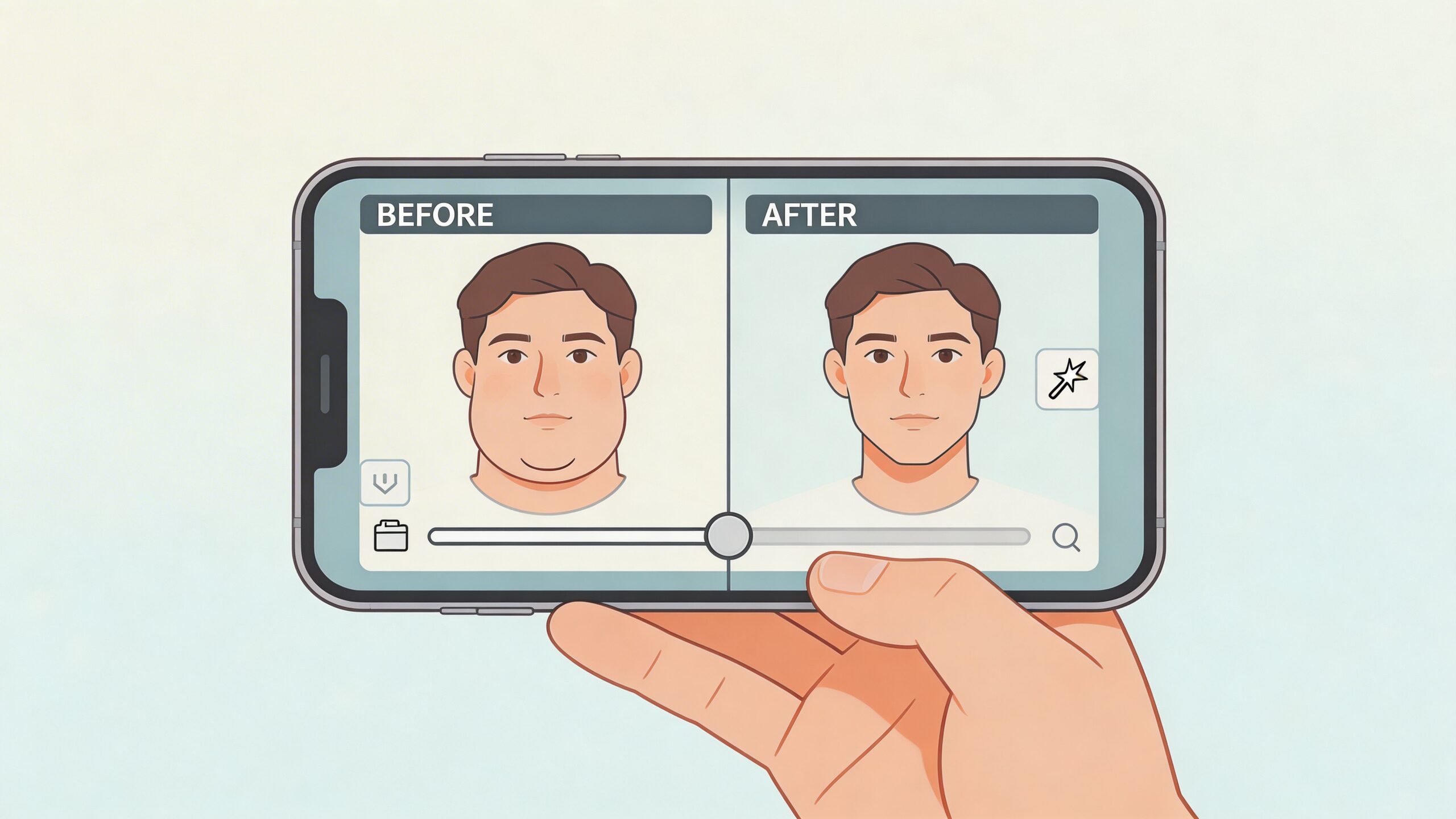
You have a photo you like. The expression is right, the light is decent, and nobody blinked. Then you notice the angle. Your chin tucked a bit, the camera sat a little low, and now the photo shows more fullness under the jaw than you want. That’s usually the point where people either over-edit the image or delete it and move on.
A better approach is lighter than many might expect. The best app to edit out double chin issues isn’t always the one that changes the most. It’s the one that lets you make a small correction without flattening skin texture, bending the jaw into a weird curve, or making the whole photo look filtered. In practice, subtle edits beat aggressive reshaping almost every time.
That’s also why it helps to fix the cause before touching the slider. Raise the camera slightly above eye level, push your face a touch forward, relax your shoulders, and use light that comes from in front of you instead of below. If you’re replacing or regenerating a portrait instead of retouching one, this guide on how AI can instantly remove a double chin from your headshot photo is useful.
Below are the tools I would consider, ranked less by hype and more by how well they support natural jawline refinement. Some are fast one-tap apps. Others are slower but safer if you care about realism.
1. Facetune

Facetune is a good starting point for people who want a fast, believable fix on a portrait they already like. It runs on iOS, Android, and web, and its face-editing tools are easier to control than a full desktop editor if your goal is a small jawline correction, not a full retouch.
Why it works well
Facetune does two useful things at once. It gives you quick AI-led adjustments, then lets you refine them manually if the first pass trims too much under the chin or pulls the jaw into a shape that no longer matches the rest of the face.
That control is important because under-chin edits can start looking artificial after a very small amount of overcorrection. The problem usually is not the chin itself. It is the transition from jaw to neck. If that line gets too sharp, the portrait stops looking like better posture and starts looking edited.
I get the best results by treating Facetune as a non-destructive sketch tool. Make one light jaw adjustment, save a version, then compare it against the original before adding anything else. That slower workflow takes an extra minute, but it protects you from the common mistake of stacking slimming, smoothing, contour, and whitening until the face loses texture and shape.
Practical rule: Make the jawline edit first at low intensity, then zoom out and check the whole head and neck. If the result only looks good close up, reduce it.
Trade-offs
Facetune is convenient, but convenience can push people into heavy editing. The app makes it easy to keep polishing after the main fix is done, and that is usually where realism drops off.
Price is the other trade-off. It is a subscription app, so it makes more sense if you retouch portraits regularly than if you only want to rescue one or two photos.
For natural results, use the reshape tools after you have already done what you can with the photo itself. A slightly higher crop, a darker background, or a small exposure adjustment under the jaw often reduces the need for facial reshaping at all. In practice, Facetune works best as a light finishing tool, not as a way to rebuild the lower half of a face.
Website: Facetune
2. YouCam Makeup

YouCam Makeup works well for the common photo problem where the angle is a little low, the light is flat, and the jawline reads softer than it did in person. In that situation, a small chin or jaw adjustment can help, but the better result usually comes from a lighter workflow. Crop first. Check whether a bit more contrast under the jaw already improves the shape. Then edit only what still looks distracting.
Best for selective corrections
YouCam Makeup gives more control than many beauty apps, which matters when the lower face needs a precise fix instead of a broad slimming effect. If one side of the jaw sits heavier because of pose, lens angle, or shadow, you can correct that area without forcing the whole face into a sharper shape.
That selective control is its real advantage. It lets the portrait keep some natural fullness, which is usually what makes the edit believable.
A practical order helps here:
- Start with the photo, not the face tool: Try a tighter crop, a slight exposure reduction under the chin, or a small contrast change before reshaping.
- Edit in one pass, then save a copy: Keep the original version so you can compare and back off if the jaw starts looking too clean.
- Work asymmetrically when needed: Match the pose and lighting in the photo instead of trying to make both sides identical.
- Stop before the neckline changes shape: If the neck contour starts bending or thinning, the edit has gone too far.
YouCam is also useful if you want to finish the portrait in the same app. Skin cleanup, contour, and makeup tools are all there. The trade-off is obvious once you start stacking them. A modest jaw correction can still look natural. Add smoothing, contour, eye enhancement, and whitening on top, and the image starts to read like a beauty filter rather than a good portrait.
What to watch for
The interface is busy. That is not just a design preference issue. More options create more chances to keep adjusting after the problem is already fixed.
I use YouCam Makeup for controlled cleanup, not aggressive reshaping. It suits users who are willing to make a version, compare it against the original, and keep the smaller edit. That slower, non-destructive habit matters more than the app itself.
Website: YouCam Makeup
3. AirBrush

A common AirBrush photo starts the same way. The chin looks heavier because the camera is low, the face is turned slightly forward, and the under-chin shadow is doing more damage than the anatomy.
AirBrush works best on that kind of image. It is strongest when the photo is already usable and only needs a restrained correction. A small shape adjustment, paired with better tonal balance under the jaw, usually gets a more believable result than pushing a face-slimming tool until the neck changes.
Where AirBrush fits best
The app is quick to use, and that matters on a phone. Its controls are simple enough that you can test a few versions fast, compare them, and keep the one that still looks like the same person.
I get the best results in AirBrush by treating it as a finishing tool, not a rescue tool. If the original angle is harsh, fix what you can before editing. Choose a frame where the head is slightly forward, crop out dead space below the neckline, and reduce distractions in the background so the jaw reads more clearly. Then make the smallest possible adjustment.
AirBrush is also one of the easier apps for non-destructive habits, even if it is not built like a full desktop editor. Save a duplicate first. Edit the copy. Reopen the original after a minute and compare both at full size. That simple check catches the over-edit that looks fine on a small preview.
Keep the correction smaller than your first instinct. The goal is to reduce what the camera exaggerated, not redesign the lower face.
Real-world limitations
AirBrush can clean up a casual portrait well, but it has limits. Push the edit too far and the soft transition from chin to neck starts to smear, especially on selfies with uneven indoor light.
The web version is convenient if you want a fast edit without installing heavier software. For profile photos, social posts, and everyday portraits, that is often enough. For headshots, client work, or any image that will be viewed closely, inspect the export at full resolution and look at the jawline against the background. Warping and blurred edges usually show up there first.
Website: AirBrush
4. BeautyPlus

A common BeautyPlus edit goes like this. You open a selfie, tap face-slimming once, add a filter, and the jaw looks sharper for a second. Then you look again and the lower face no longer matches the rest of the photo.
BeautyPlus is quick, friendly, and built for fast cosmetic edits. That speed is useful, but it also encourages bigger changes than the photo can support. For double-chin cleanup, the app works best when you treat it as a light correction tool and let posing and light do some of the work first.
Best for fast edits with a light touch
BeautyPlus is convenient because shape tools, skin tools, and filters are grouped closely together. If you already have a decent photo, with the chin slightly forward and light coming from above or from a window in front of you, a small jaw adjustment can look natural in under a minute.
I would not use it to rescue a bad angle. I would use it to soften what the camera exaggerated.
That difference matters. A strong downward camera angle or flat indoor light creates a dense shadow under the chin, and BeautyPlus can flatten that area too aggressively. A better starting frame usually gives a better result than a stronger slider.
How to keep the edit believable
In BeautyPlus, the "less is more" philosophy matters most. The app makes heavy edits easy, so the safest workflow is to protect the original and build the correction in small steps.
- Save a copy before editing: Work on a duplicate so you can compare the edited version against the original.
- Adjust shape first, then stop and review: Check the jawline before adding skin smoothing or filters.
- Fix only the area that needs help: If the issue is under the chin, avoid slimming the whole face.
- Use filters last, and keep them weak: Strong filters can hide warped edges until after export.
One more practical check helps here. Zoom in on the line where the jaw meets the neck and look at the edge against hair, clothing, or background. If that boundary starts to blur or bend, the edit is already visible.
Real trade-offs
BeautyPlus is a solid choice for selfies, social posts, and casual profile photos. It is less reliable for close-cropped headshots or any image that will be viewed at full size, because soft tissue transitions under the chin are easy to over-smooth.
If natural results matter, do less in the app and more before you shoot. Raise the camera slightly above eye level, push the forehead forward a touch, and use soft front light. Then use BeautyPlus for a modest correction you can still dial back if it starts to look processed.
Website: BeautyPlus
5. Adobe Photoshop

If the photo matters, Photoshop is still the safest choice for realistic correction. It’s slower, and yes, it has a learning curve. But for natural results, precise tools beat one-tap apps.
Best for non-destructive editing
The main advantage isn’t just Liquify. It’s the layer-based workflow. You can duplicate the base layer, make a small chin or jaw adjustment, mask it back selectively, and reduce opacity if the result feels overdone.
That’s how professionals avoid the common “edited face, untouched photo” problem. You don’t commit all at once. You test, compare, and ease back.
For under-chin refinement, Face-Aware Liquify can help, but classic Liquify with a large brush and tiny pressure settings usually gives the cleaner result. The fix should follow the natural contour of the jaw, not invent a new facial structure.
If the background edge starts bending near the jaw, the retouch is already visible. Undo it.
When Photoshop is the right call
Use it for portfolio images, brand shoots, speaker bios, dating photos you plan to keep, and any image that might be printed or cropped tightly.
Photoshop also suits sellers and marketers who need polished people shots around products. That matters because heavily edited faces can weaken trust in commercial imagery. Existing guidance in this niche often pushes subtle edits, but there’s still a major gap around authenticity and buyer confidence in e-commerce contexts, especially for lifestyle imagery tied to product credibility, as noted in OpenArt’s discussion of subtle adjustments and authenticity.
Website: Adobe Photoshop
6. Adobe Photoshop Express

Photoshop Express is for the person who wants Adobe’s cleaner interface and mobile convenience without opening full Photoshop. It won’t replace desktop retouching, but it’s useful when you need a quick, controlled fix on your phone.
Fast mobile cleanup
The appeal here is simplicity. Automatic face detection and reshape-style tools make it easier to tighten a jawline or reduce a soft fold under the chin without wrestling with a dense beauty app.
This kind of editing is also replacing older mobile workflows. According to available data, dedicated and AI-assisted tools have significantly reduced edits that once took substantial time in Adobe Photoshop Express, making them much faster in newer apps, a big reason these specialized options have grown in appeal through the visual-first economy. That doesn’t make Photoshop Express bad. It just clarifies its role. It’s a capable middle ground, not the fastest specialist.
Practical use case
If you already use Lightroom or Creative Cloud, Photoshop Express fits neatly into that setup. You can make a small structural correction, then handle exposure, color, and crop in a familiar ecosystem.
The limitation is precision. It’s easier to make a good-enough mobile edit than an invisible one.
For best results, use it like a trim tool, not a sculpting tool. Tidy the jawline slightly, then stop.
Website: Adobe Photoshop Express
7. RetouchMe

You take a photo that matters, a profile picture, a team headshot, a marketplace portrait, and the jawline looks heavier than it did in person. The temptation is to drag a slider until the chin disappears. That usually creates a different problem. The face stops matching the body, neck texture smears, and the edit starts to read as edited.
RetouchMe takes a different route. You send the image, select the correction, and a human retoucher handles the adjustment.
Why that matters
Human retouching is useful when the right fix is restraint, not force. A good editor can tell the difference between actual fullness under the chin and a problem caused by camera angle, overhead light, posture, collar shape, or a shadow sitting in the wrong place. That judgment is hard to replicate with one-tap tools.
This also fits a less-is-more workflow. Start by choosing the best frame you already have, ideally one with a slightly raised camera position and soft front light. Then send only the image that still needs help. You preserve more of the original face, and the retouch has less work to do, which usually leads to a more believable result.
Best use cases
RetouchMe makes the most sense when realism matters more than speed. That includes dating photos, LinkedIn portraits, creator headshots, and client-facing images where an overdone jaw edit can hurt trust faster than a small double chin ever would.
It also works well if you prefer a non-destructive editing habit. Keep the original file, export the retouched version separately, and compare them side by side before posting. That same mindset helps in ecommerce image prep too. If you regularly clean up subject photos for listings, tools for removing backgrounds for Shopify product images pair well with light retouching because both jobs depend on making the image cleaner without making it look fake.
The trade-off is control and turnaround time. You are trusting someone else’s judgment, and per-photo editing gets expensive if you have a large batch. For one important image, that can be a fair exchange. For fifty, it usually is not.
Website: RetouchMe
8. Pixelcut – Double Chin Remover

You took a decent portrait on your phone, but the camera angle dropped a little low and the neck shadow got heavy. You do not need a full retouch suite for that. Pixelcut works best when the fix is small and the goal is to clean up the photo without spending ten minutes on face-shaping tools.
Best when the photo is already close
Pixelcut is a browser-first option built for quick corrections. Upload the image, run the tool, review the result, and export. That simplicity is useful for sellers, creators, and small teams who edit on different devices and do not want to install a dedicated beauty app just to soften one problem area.
It also fits a less-is-more workflow. Start before the edit if you can. Pick the frame with the highest camera position, ask the subject to push the forehead slightly forward, and use soft front light instead of overhead light that deepens the fold under the chin. Then use Pixelcut for the last 10 percent. The result usually looks more natural because the app is refining a decent photo, not trying to rebuild the jawline from scratch.
What to watch for
The trade-off is precision. If the tool trims too much or softens the jaw unevenly, there may not be enough manual control to correct the mistake cleanly. That matters most on side angles, busy backgrounds, and portraits where hair, collars, or shadows overlap the neck.
A non-destructive habit helps here. Keep the original file, export the edited version separately, and compare them side by side before posting. If the chin looks tighter but the face starts to look flattened, dial back and use the original. Quick AI edits are strongest when they stay subtle.
For ecommerce and social teams, Pixelcut also makes sense in a broader cleanup workflow. The same photo that needs a mild chin correction may also need a product cutout or cleaner composition for listings, so pairing it with a tool for removing backgrounds from Shopify product images can save time without building a heavy editing stack.
Website: Pixelcut Double Chin Remover
9. Fotor – Double Chin Remover

You took a decent portrait on your phone, but the angle added a little fullness under the chin. You do not need a heavy retouch for that. Fotor is useful when the goal is a small correction in a browser, then a few cleanup edits on the same file before export.
Best for light edits you can keep under control
Fotor works well if you follow a less-is-more approach. Start with the strongest frame first. A slightly higher camera position, softer front light, and a relaxed neck posture usually reduce how much editing the app has to do. Then use the chin tool to trim the last bit, not to redraw the whole jawline.
That matters because Fotor is built for speed. The tool is quick, easy to preview, and practical for people publishing profile photos, social posts, or marketplace images on a deadline. You can also handle crop, brightness, and output size in the same workspace, which saves time if the photo is headed to more than one platform.
What the trade-off looks like
The trade-off is control.
Fotor is less suited to difficult portraits where hair crosses the neck, collars cover the jawline, or the subject is turned far off-center. In those cases, fast AI reshaping can look slightly generic, and the jaw can lose some natural asymmetry that makes a face look real. If that happens, stop early. Keep the original, export a separate version, and compare both at full size before posting.
I find Fotor strongest for routine images that need restraint, not rescue. It also fits neatly into a broader content workflow if the same team is creating product visuals and portraits in parallel, especially alongside an AI product photo generator for quick listing assets.
Website: Fotor Double Chin Remover
10. insMind – AI Double Chin Remover

You take a profile photo in decent light, but the angle adds extra fullness under the jaw. You do not need a heavy retouch for that. insMind suits this kind of correction because the workflow is simple, browser-based, and fast to preview.
Best for light edits with minimal setup
insMind is built for users who want a guided result instead of manual face sculpting. Upload the image, run the double chin tool, then check the jawline closely before making any other adjustments. That order matters. If the chin edit already looks believable, leave it there and avoid stacking extra slimming tools on top.
I get the best results from apps like this when the source photo is already close. A slightly higher camera position, even front light, and a relaxed neck usually remove half the problem before editing starts. The app should finish the image, not rebuild the face.
Where the trade-off shows up
The strength is speed. The trade-off is reduced control around edges.
If hair, collars, hands, or strong shadows overlap the jaw, AI cleanup can smooth away natural contours or create a cutout look under the chin. For important portraits, keep the workflow non-destructive. Save the original, export one edited version, and compare both at full size on the device where the photo will be used.
That makes insMind practical for busy content workflows, especially if the same person is handling portraits and simple catalog visuals in one pass with an AI product photo generator for listing images.
insMind is a good choice for quick, restrained edits. Test it on a few angles first, and use it for refinement rather than rescue.
Website: insMind AI Double Chin Remover
Top 10 Double-Chin Removal Apps Comparison
| Tool | ✨ Core features | ★ UX / Quality | 💰 Price & Value | 👥 Target audience | 🏆 Unique strength |
|---|---|---|---|---|---|
| Facetune | Face Slimmer, Reshape, blemish/teeth, video retouch | ★★★★☆ Intuitive, natural results | 💰 Subscription (premium tier) | 👥 Consumers, influencers | 🏆 Powerful face tools + 1‑tap presets |
| YouCam Makeup (Perfect Corp) | Face Shaper, AI face analysis (numerous features), makeup tools | ★★★★☆ Feature‑rich; steeper learning | 💰 Freemium → premium for advanced | 👥 Beauty enthusiasts, prosumers | 🏆 Deep AI analysis + makeup ecosystem |
| AirBrush | AI Face Editor, Reshape/liquify, web & native apps | ★★★★ Easy web workflow; balanced controls | 💰 Freemium; Pro for best results | 👥 Casual creators & social editors | 🏆 Cross‑platform with solid auto/manual mix |
| BeautyPlus | Face/body slimming, object remover, filters | ★★★ Approachable; can overprocess if pushed | 💰 Freemium; many features paid | 👥 Casual users, social sharers | 🏆 Large filter/retouch ecosystem |
| Adobe Photoshop | Face‑Aware Liquify, Liquify/Warp, layers, Firefly | ★★★★★ Professional precision; learning curve | 💰 Subscription (higher, pro focus) | 👥 Professionals, e‑commerce studios | 🏆 Industry‑standard precision & non‑destructive edits |
| Photoshop Express | Auto face detect, reshape, mobile retouch tools | ★★★★ Fast, mobile‑friendly | 💰 Freemium; some premium features | 👥 Mobile editors, quick fixes | 🏆 Trusted Adobe mobile companion |
| RetouchMe | Menu‑based human edits (remove double chin) | ★★★★ Very natural, bespoke results (human) | 💰 Pay‑per‑edit (can add up) | 👥 Users wanting human‑grade retouch | 🏆 Real human editors for natural finish |
| Pixelcut – Double Chin Remover | Prompt‑driven remove double chin; web + app | ★★★★ Fast, minimal friction | 💰 Freemium / lightweight pricing | 👥 Non‑experts needing quick fix | 🏆 Extremely simple, focused workflow |
| Fotor – Double Chin Remover | AI chin detection, one‑click slimming, exports | ★★★ Quick, minimal steps; less granular | 💰 Freemium; watermarks/limits on free | 👥 Casual → semi‑pro editors | 🏆 Combines slimming with export presets |
| insMind – AI Double Chin Remover | Dedicated double‑chin model, broader AI tools | ★★★★ Clean UI; guided, natural edits | 💰 Freemium/newer pricing models | 👥 Quick editors seeking natural look | 🏆 Guided workflow with natural‑style model |
Choosing the Right Tool for Your Portrait
The best app to edit out double chin details depends less on branding and more on how much control you need, how careful you are with realism, and whether the photo matters beyond a quick post.
If you want speed and low effort, Facetune, YouCam Makeup, AirBrush, Fotor, Pixelcut, and insMind all make sense. They’re built for fast corrections, and they work best when the original photo is already close. In that situation, a small jawline cleanup can be enough.
If you want precision, Photoshop is still the best option on this list. It takes longer, but it gives you the safest path to an edit that doesn’t look edited. Photoshop Express is the lighter version of that idea on mobile. It’s useful when you want a controlled touch-up without opening a full desktop workflow.
If you don’t trust yourself to stop at the right point, RetouchMe is often the most practical answer. Human retouchers can make a restrained correction that preserves the rest of the face, especially when AI tools keep smoothing or reshaping too aggressively.
The bigger lesson is that less usually works better. Many poor double chin edits happen because users try to erase every sign of softness under the jaw. Real faces have contour variation. They have neck folds at certain angles. They have shadows. A believable edit reduces distraction. It doesn’t redesign your anatomy.
That matters even more for professional and commercial use. If you’re editing a headshot, creator portrait, or lifestyle image tied to a product, the goal isn’t perfection. It’s credibility. A lightly refined image feels polished. A heavily reshaped one can feel synthetic, and that can hurt trust faster than a minor flaw ever would.
Before editing, improve what you can at capture:
- Raise the camera slightly: Lower angles exaggerate fullness under the chin.
- Push the face forward a touch: This sharpens the jawline without straining.
- Use front-facing light: Shadows from below almost always make things worse.
- Relax your edit after a first pass: Step away, return, and check whether the face still looks like you.
For many, the winning workflow is simple. Start with a better photo. Make one small structural adjustment. Skip the extra beautify layers unless the image needs them. That’s the easiest way to get a portrait that looks polished and still feels honest.
If you want a broader look at polished editing tools for portraits and beyond, this guide to the best professional photo editing app is a useful companion.
If you sell on Shopify, Amazon, Etsy, eBay, or social platforms, ProdShot can handle the visual cleanup work that usually eats your time. It turns basic phone photos into polished, marketplace-ready images with AI background removal, lighting enhancement, and fast edits that don’t require studio gear or design experience. For small retailers, agencies, and creators who need better images without a complicated workflow, ProdShot is a practical shortcut.