
Introduction
High-quality product photos play a pivotal role in driving e-commerce sales. They captivate potential buyers, foster trust, and effectively convey your products' value. Yet, professional photography services can be expensive, particularly for small-scale sellers. Thankfully, several free tools exist to enhance your product images without incurring high costs. This guide delves into top free tools, offering practical advice, examples, and best practices, enabling your e-commerce listings to excel in a competitive marketplace.
1. GIMP: The Open-Source Powerhouse
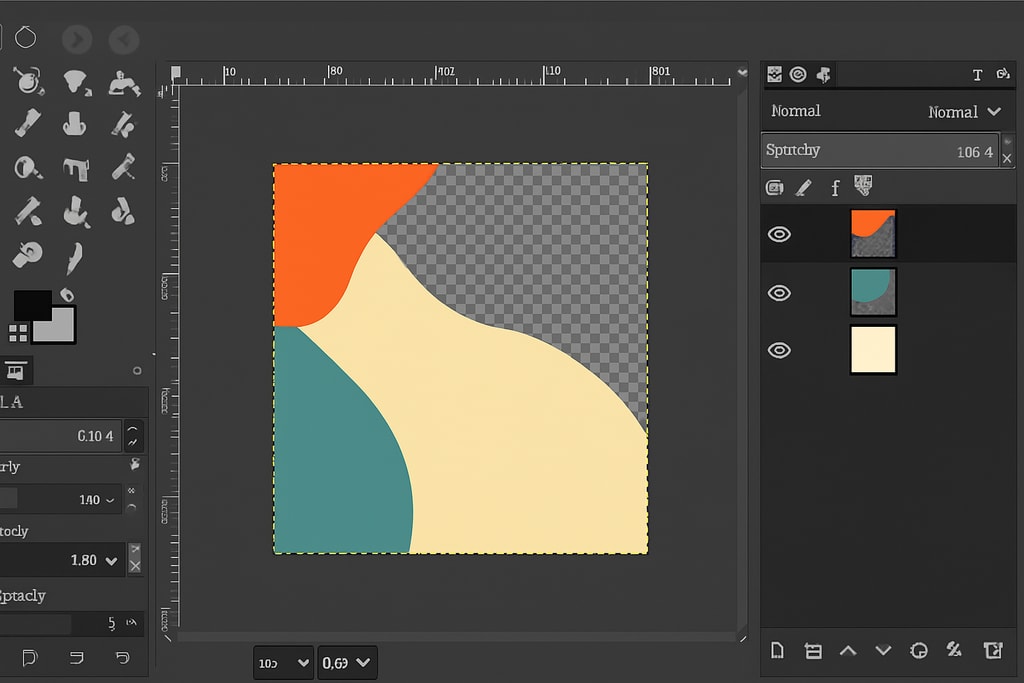
Overview: GIMP (GNU Image Manipulation Program) is a robust, open-source photo editing software that rivals many paid platforms. It’s perfect for tasks ranging from basic corrections to complex manipulations.
Key Features:
- Layer Support: Non-destructive editing and complex compositions.
- Advanced Retouching: Clone and healing brushes for meticulous edits.
- Color Correction: Options including curves, levels, and hue adjustments.
- Plugin Support: Extend functionality with numerous plugins.
Best For: Sellers seeking a free, full-feature alternative to professional software for intricate edits.
Practical Example: Use layers and masks in GIMP to create realistic drop shadows, enhancing the product’s appearance on white backgrounds.
Mistakes to Avoid: Avoid over-editing. Maintain the realistic appearance of your products by using subtle retouching.
Getting Started: Download GIMP from the official site and explore product photo creation tutorials to master its interface.
2. Canva: User-Friendly Design and Editing
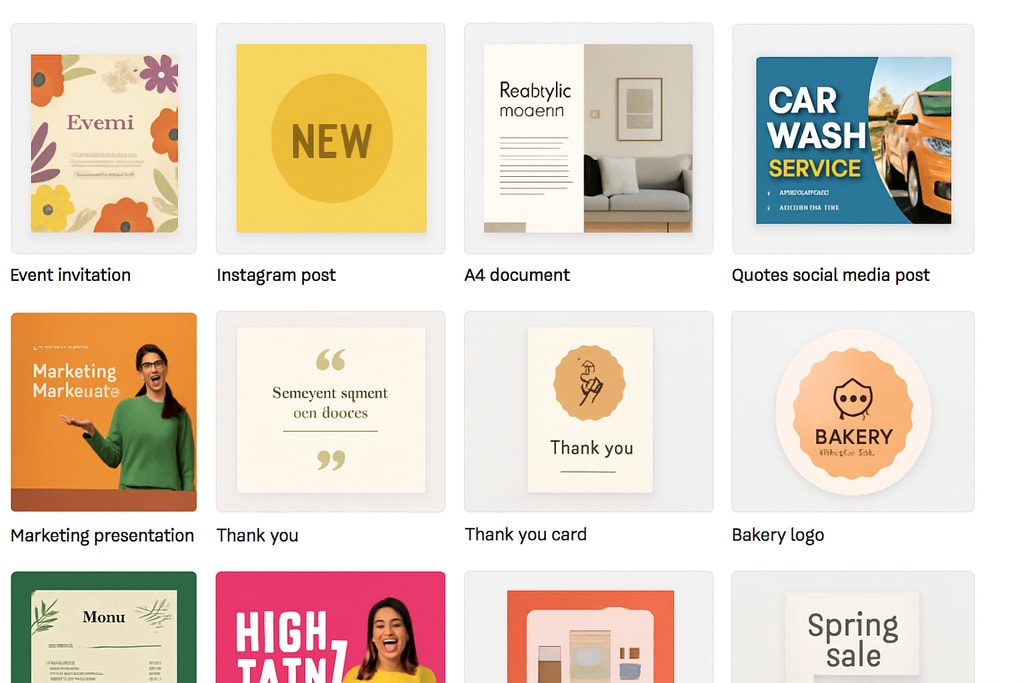
Overview: Canva simplifies the creation of visually engaging graphics. Its intuitive interface and extensive templates cater to those without design experience.
Key Features:
- Drag-and-Drop: Easily add and arrange elements.
- Templates: Thousands for various needs.
- Basic Editing: Adjust brightness and contrast, apply filters.
- Background Removal: Easily isolate products.
Best For: Sellers needing quick, polished product images and promotional materials.
Practical Example: Create cohesive branding by designing banners and ads using the template library and custom fonts.
Mistakes to Avoid: Be cautious with text overlay on product images—it can distract rather than inform.
Getting Started: Sign up on Canva to start designing with their intuitive tools. Enhance photos further using free product photo tools.
3. Photopea: Browser-Based Photoshop Alternative
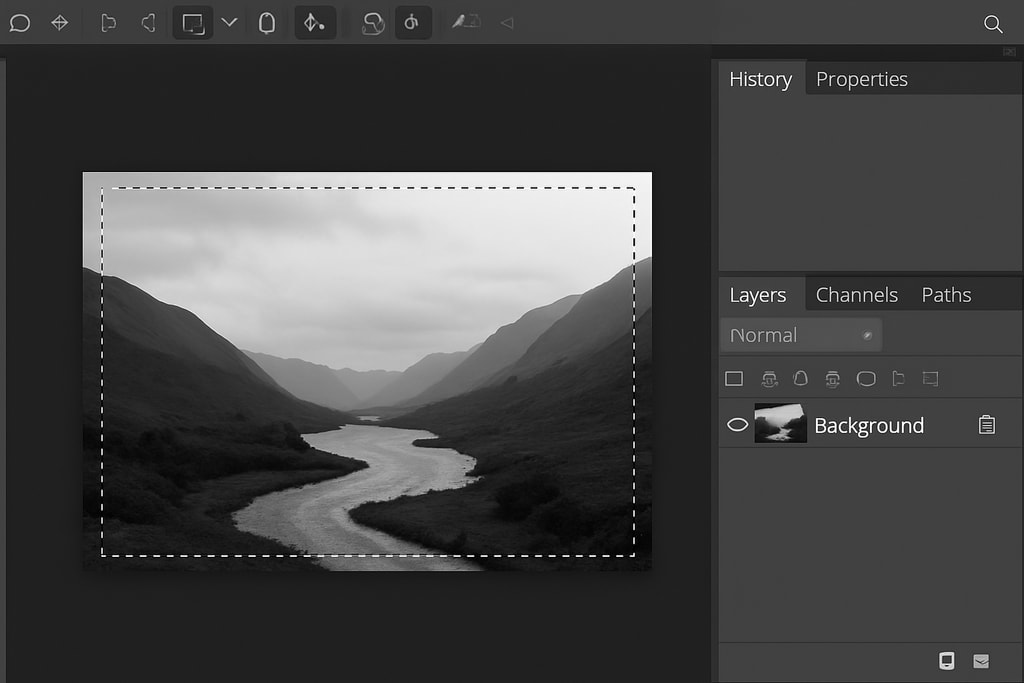
Overview: Photopea mirrors Adobe Photoshop's interface and functions. It supports PSD and is versatile for editing.
Key Features:
- Layer Support: For complex tasks.
- Advanced Selection Tools: For precise adjustments.
- Compatibility: Opens PSD, XCF, and more.
- No Installation: Browser-based.
Best For: Photoshop users seeking a similar, free web-based alternative.
Practical Example: Use advanced selection tools to swap backgrounds or isolate products accurately.
Mistakes to Avoid: Not backing up edited files. Always save your progress through different formats and versions.
Getting Started: Visit Photopea online and begin editing. Explore step-by-step guides to adapt Photoshop skills to this platform.
4. Pixlr: Quick and Accessible Editing
Overview: Pixlr provides Pixlr X for quick edits and Pixlr E for advanced tasks, all browser-based.
Key Features:
- AI-Powered Background Removal: Isolates products effortlessly.
- Filters and Effects: Enhances visuals.
- Layer Support: Available in Pixlr E for complex editing.
- Interface: User-friendly for all levels.
Best For: Sellers in need of quick image enhancements without professional software.
Practical Example: Utilize AI tools to remove backgrounds and focus on product features easily.
Mistakes to Avoid: Overuse of effects can result in unnatural images. Keep enhancements subtle.
Getting Started: Access Pixlr X or E and start editing through their web platform. Test both versions to find which suits your needs.
5. Snapseed: Mobile Editing on the Go
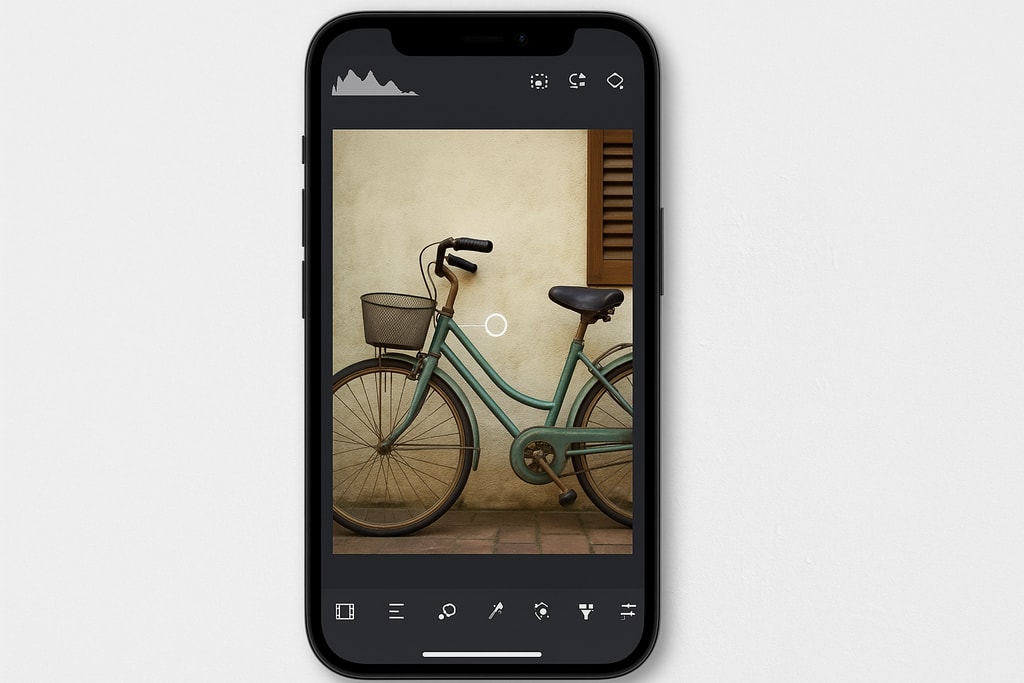
Overview: Snapseed by Google offers professional editing tools on mobile for convenience.
Key Features:
- Selective Adjustments: Edit specific image areas.
- Healing Tool: Cleanly remove unwanted elements.
- Filters and Effects: Enhance with diverse styles.
- RAW Editing: Directly handles RAW files.
Best For: Sellers preferring mobile image editing.
Practical Example: Remove blemishes or unwanted reflections using the healing tool for cleaner product presentation.
Mistakes to Avoid: Mismatching color enhancements can alter how products appear, leading to customer dissatisfaction.
Getting Started: Download Snapseed on mobile and explore its tools. Pair with desktop software for a streamlined workflow.
6. Darktable: Advanced RAW Processing
Overview: Darktable is an open-source RAW developer, managing digital negatives in a database for ease.
Key Features:
- Non-Destructive Editing: Keeps originals unaltered.
- RAW Processing: Handles advanced file management.
- Color Management: Accurate ICC profile reproduction.
- Tethered Shooting: Direct camera control.
Best For: Photographers and sellers needing advanced RAW file processing.
Practical Example: Use tethered shooting for immediate feedback and adjustments during shoots.
Mistakes to Avoid: Incomplete understanding of RAW controls might alter product color accuracy.
Getting Started: Download from Darktable’s website and study the manual to harness its power.
7. Affinity Photo: Professional-Grade Editing for Free
Overview: Affinity Photo delivers professional-grade tools without subscription, now free via Canva.
Key Features:
- Comprehensive Tools: Advanced retouching, HDR merging.
- Non-Destructive Workflow: Flexible editing.
- File Support: PSD, RAW, and more.
- Performance: Speed and efficiency optimized.
Best For: A high-quality, free alternative to Photoshop for sellers.
Practical Example: Use HDR merge to highlight product textures, making details stand out.
Mistakes to Avoid: Forgetting to utilize non-destructive layering for safety in editing.
Getting Started: Download from Canva and engage with tutorials to get started.
Checklist: Choosing the Right Tool for Your Needs
| Requirement | Recommended Tool | Notes | |————-|——————|——-| | Basic Edits (Crop, Rotate) | Canva, Pixlr X | User-friendly, quick adjustments. | | Advanced Editing (Layers) | GIMP, Photopea | Comprehensive tools for complex edits. | | RAW Processing | Darktable | Key for RAW file handling. | | Mobile Editing | Snapseed | Smartphone convenience. |
FAQs
1. Can I use these tools commercially? Yes, all listed tools allow commercial use, but always review individual license agreements.
2. Are free tools suitable for all product types? Most tools suffice for typical products. However, specialized items might benefit from niche software.
3. How do I decide between web-based and installed software? Consider your workflow needs. Web-based offers flexibility, installed software might offer stability.
4. What if I need more advanced features? Explore upgrades or supplementary tools for advanced features beyond free options.
5. Can these tools replace professional photography? They significantly enhance photos; however, for high-end campaigns, professional photography might still be beneficial.